Till
Item vouchers (hand out at the counter)
Tick Print voucher on a dish. Every time it's sold, a voucher with a QR code prints, and the customer swaps it at the counter. Two till switches, both off by default, add a scanner and a To hand out list.
Ce contenu n’est pas encore disponible dans votre langue.
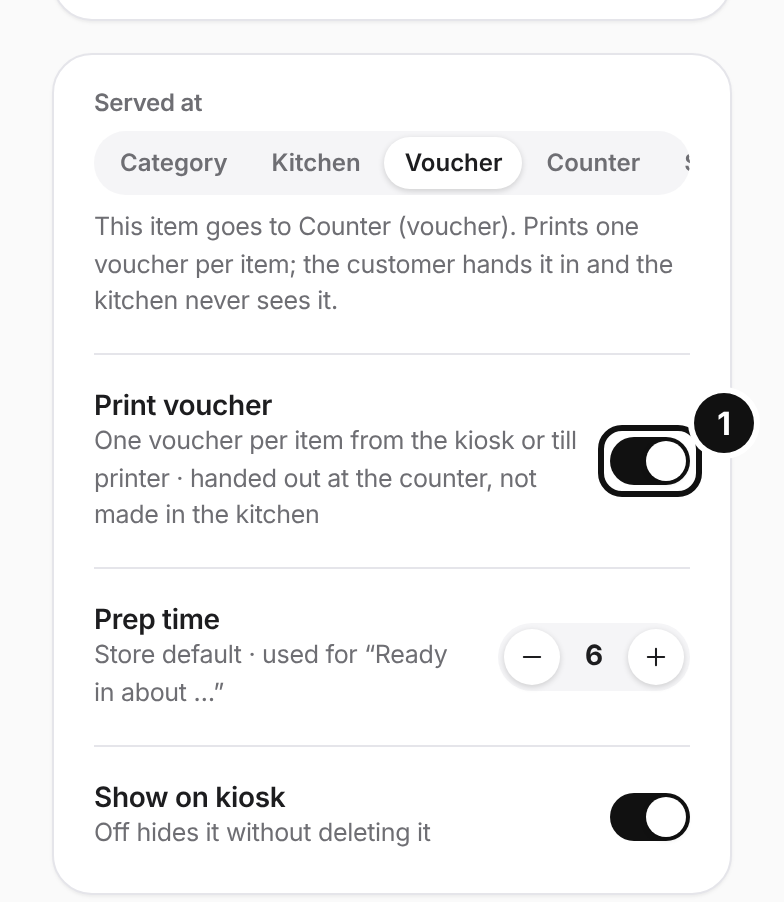
1. Tick Print voucher on the dish
-
In the back office, open Menu and tap the dish. Switch on Print voucher. Served at changes to the counter, so the dish no longer goes to the kitchen screen.
2. Choose how the till handles vouchers
-
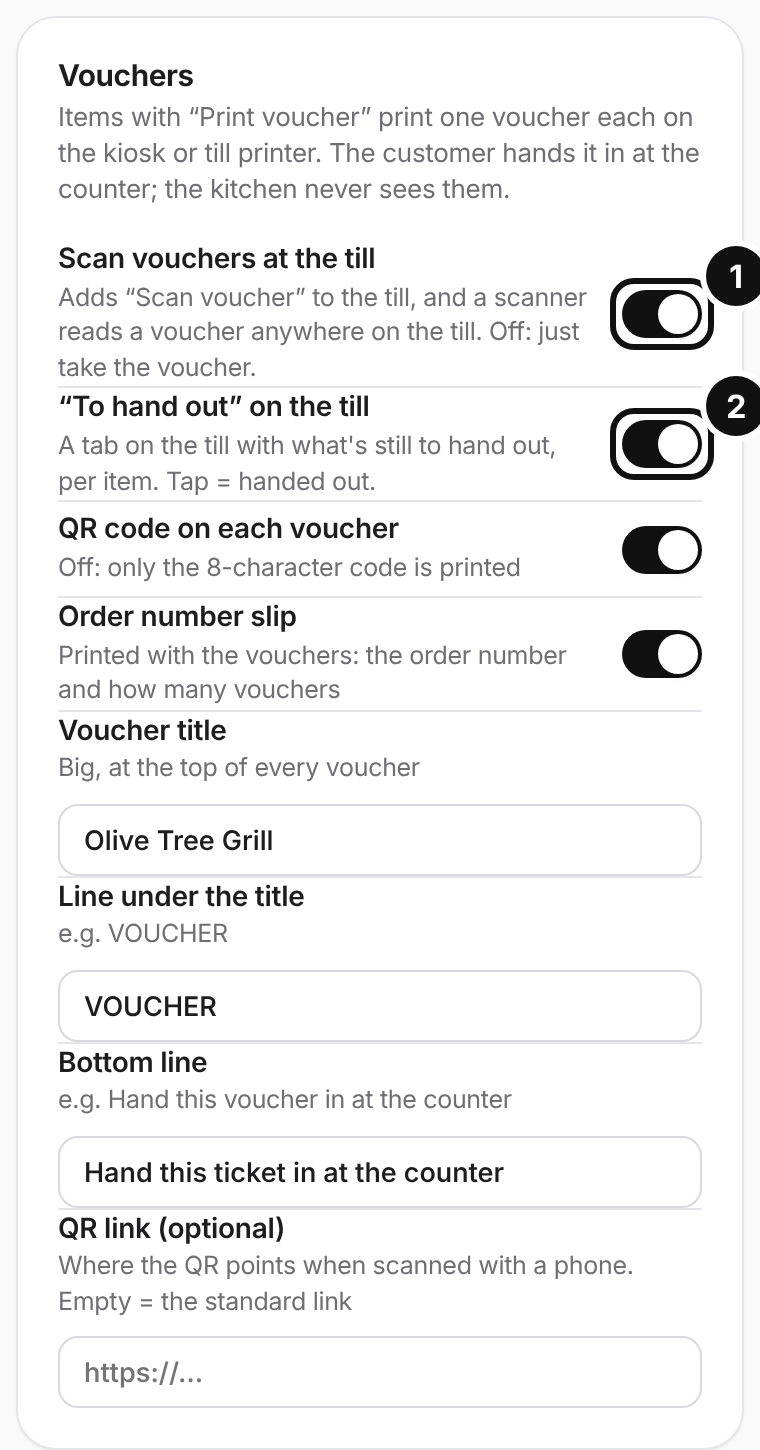
Open Restaurant → Stations & routing and scroll to the vouchers card. Switch on what you need: (1) Scan vouchers at the till and (2) To hand out on the till.
| Switch | What it does | Default |
|---|---|---|
| Scan vouchers at the till | Adds Scan to the till: scan the QR or type the 8 characters | Off |
| “To hand out” on the till | Adds a To hand out list of everything still to give out | Off |
| QR code on each voucher | Prints a QR code on every voucher | On |
| Order number slip | Prints a slip with the order number | On |
3. Hand out at the counter
-
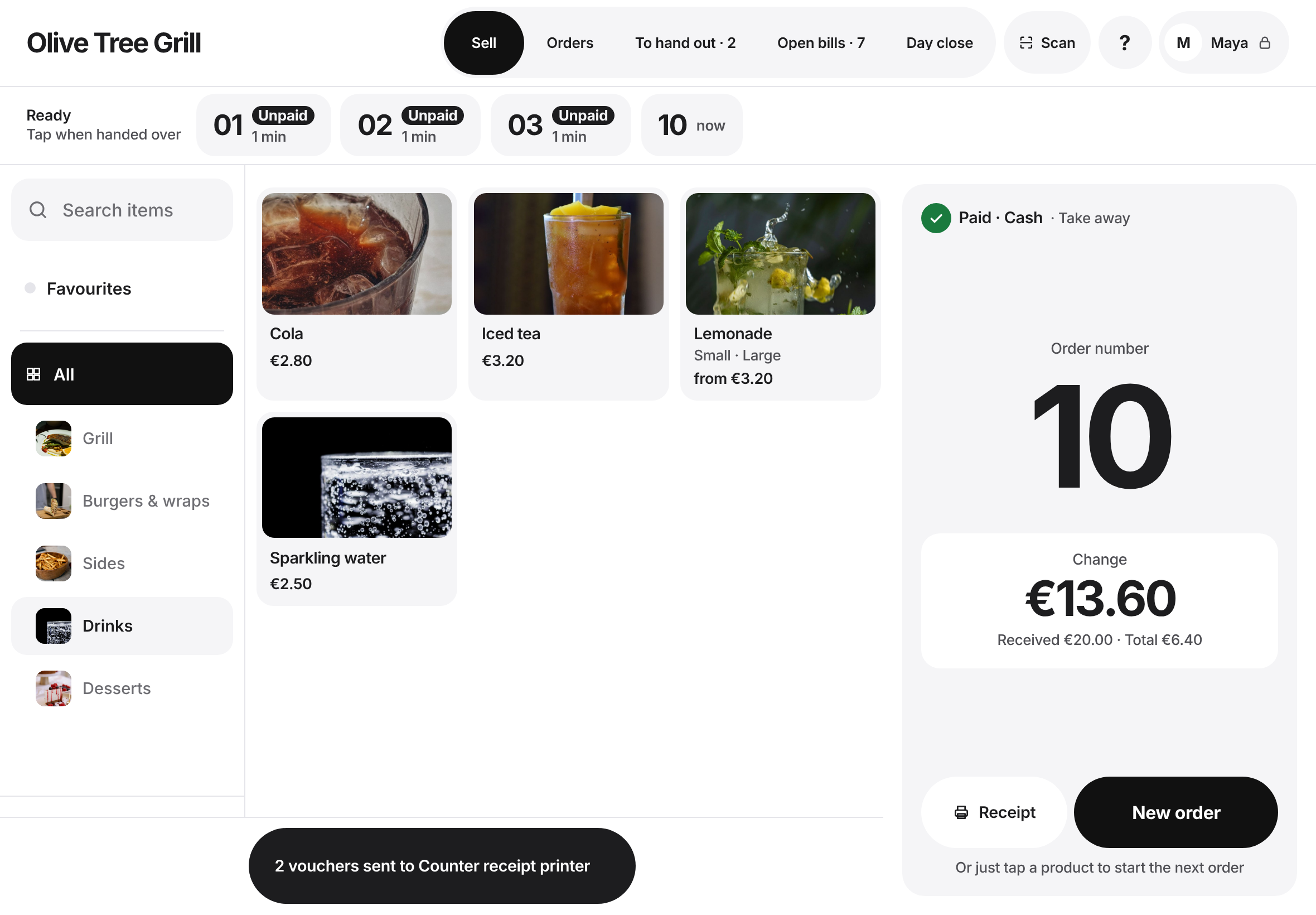
Sell the dish as usual. After payment, one voucher prints for each one sold.
-
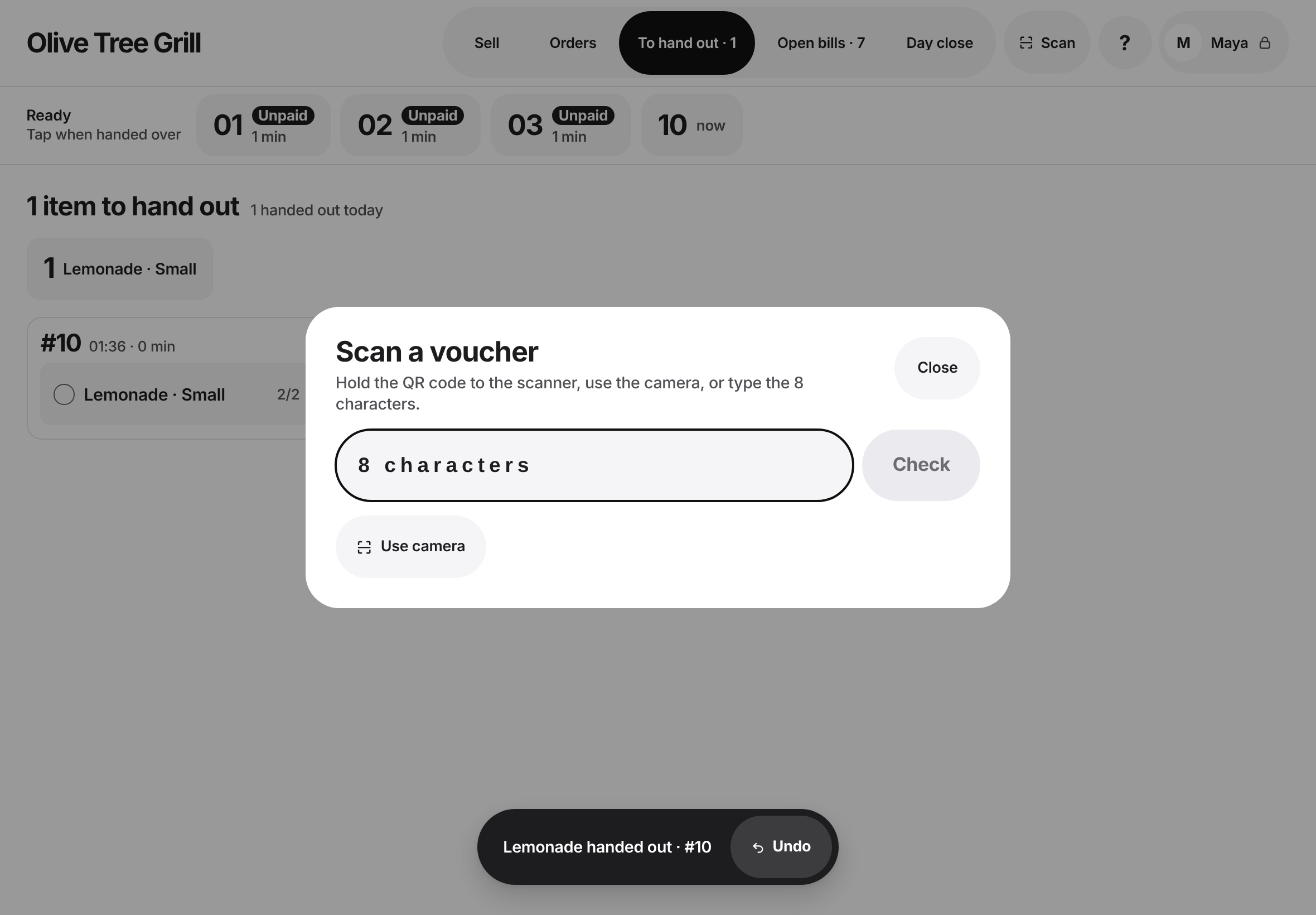
Open To hand out. Totals per item are on top, then each order. Tap an item when you hand it out (Undo if you tapped by mistake).
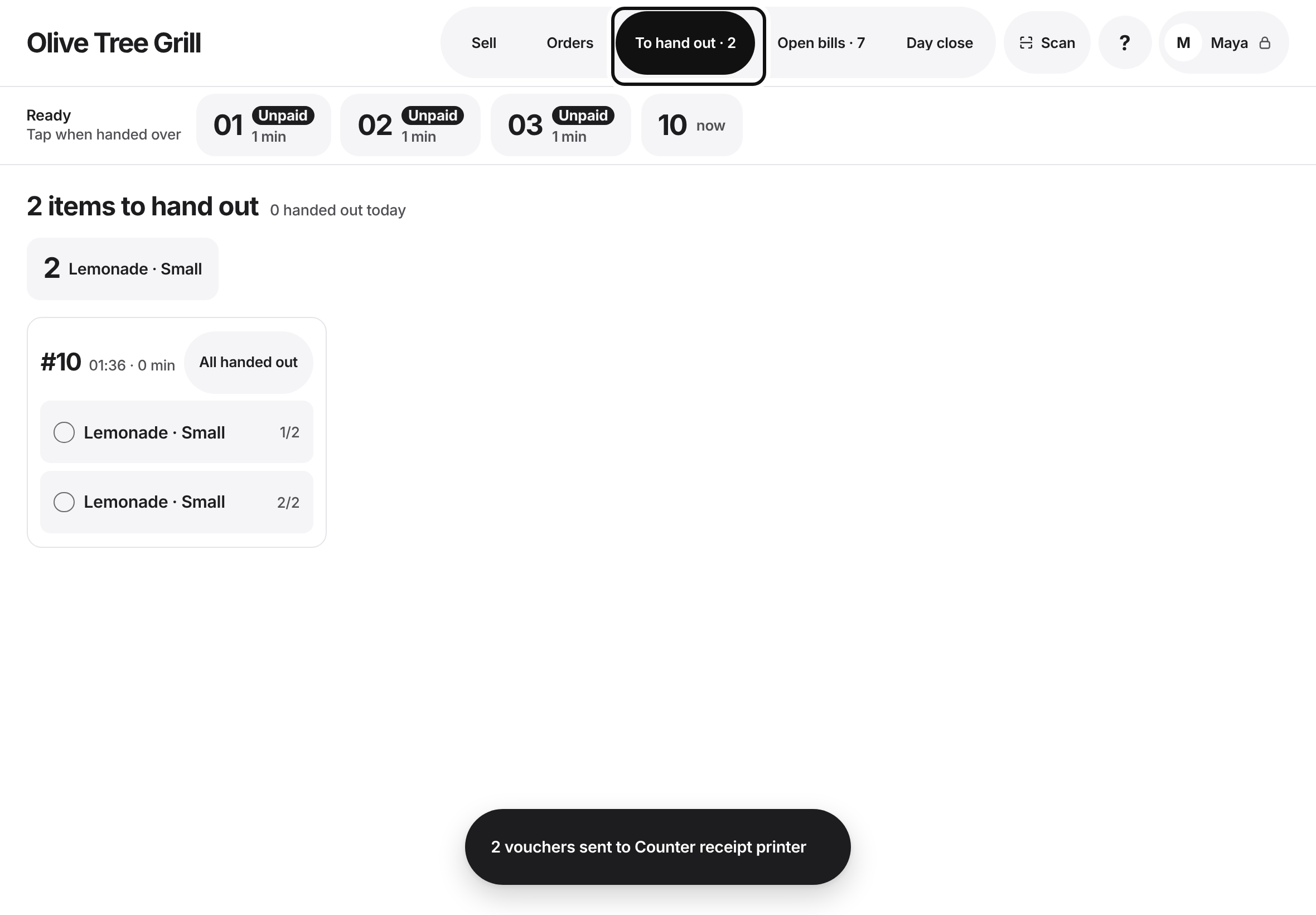
-
Or tap Scan and hold the voucher’s QR code to the scanner. You can also use the camera or type the 8 characters.