Apps
The till
The till runs in a browser on a tablet or computer. Staff sign in with their PIN. The tabs at the top are Sell, Orders, Open bills and Day close.
Ce contenu n’est pas encore disponible dans votre langue.
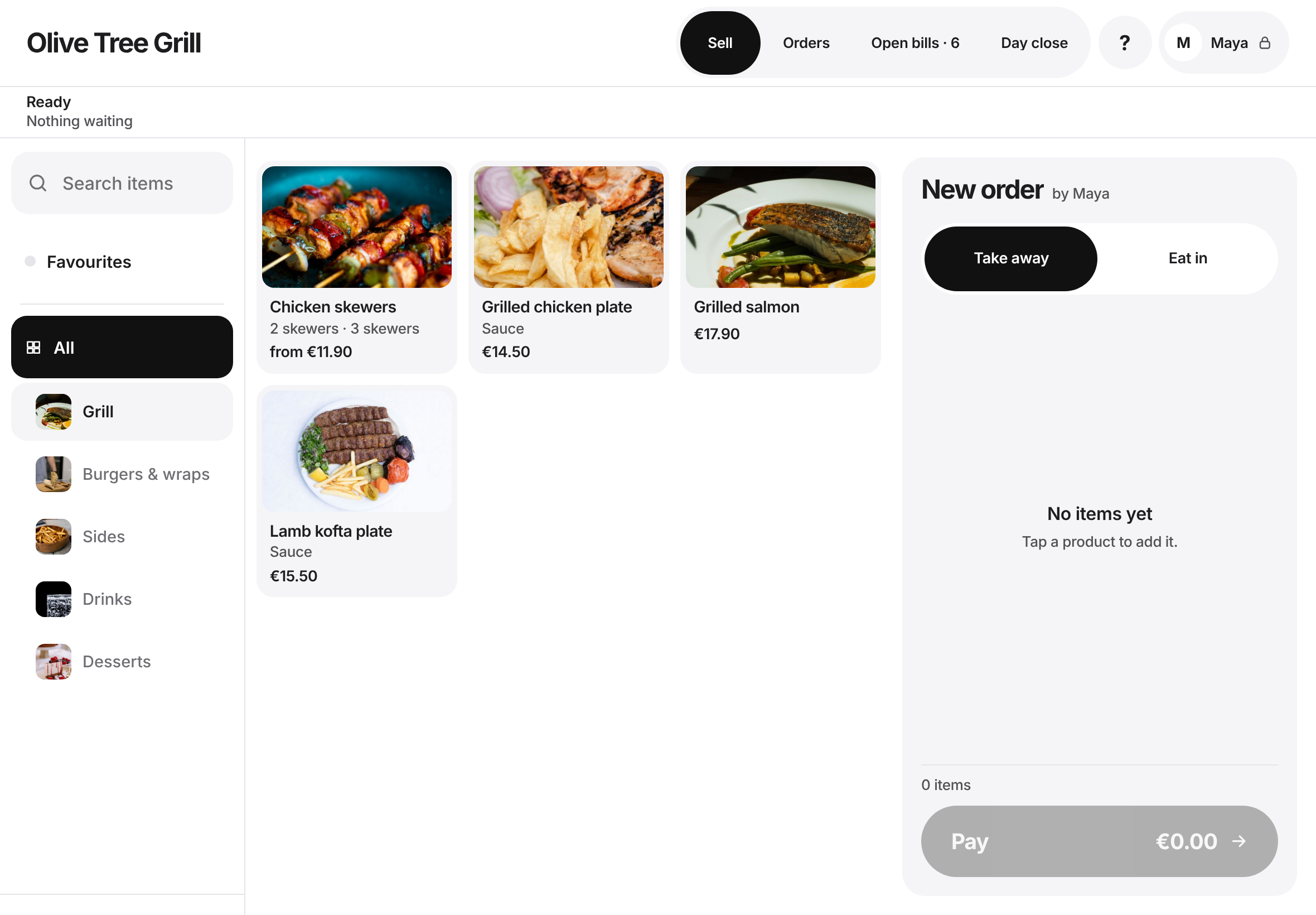
The tabs
| Tab | What it’s for |
|---|---|
| Sell | Tap dishes, take the payment. How |
| Orders | Today’s orders: reprint, void or refund. How |
| To hand out | Vouchers still to hand out (only if switched on). How |
| Open bills | Bills not paid yet |
| Day close | Totals, cash count, close the day. How |
The Ready strip shows orders the kitchen finished. Tap one when you hand it over.
Set up a till
A tablet, phone or computer becomes a till by opening the till’s setup link once. The till remembers it after that.
- In the back office, open Devices and tap Pair a device.
- Under Used as, pick Till, give it a name and tap Get a setup link.
- Open the link on the till: scan the QR code with a tablet or phone, or paste it in the till app on a computer.
- Staff sign in with their name and PIN.
Pictures of each step: Set up a till.
No internet?
Cash sales keep working. They’re saved on the till and sent when the internet is back. Call new orders to the kitchen while you’re offline. Pay later and adding to a bill don’t work offline.