Screens
The order status screen
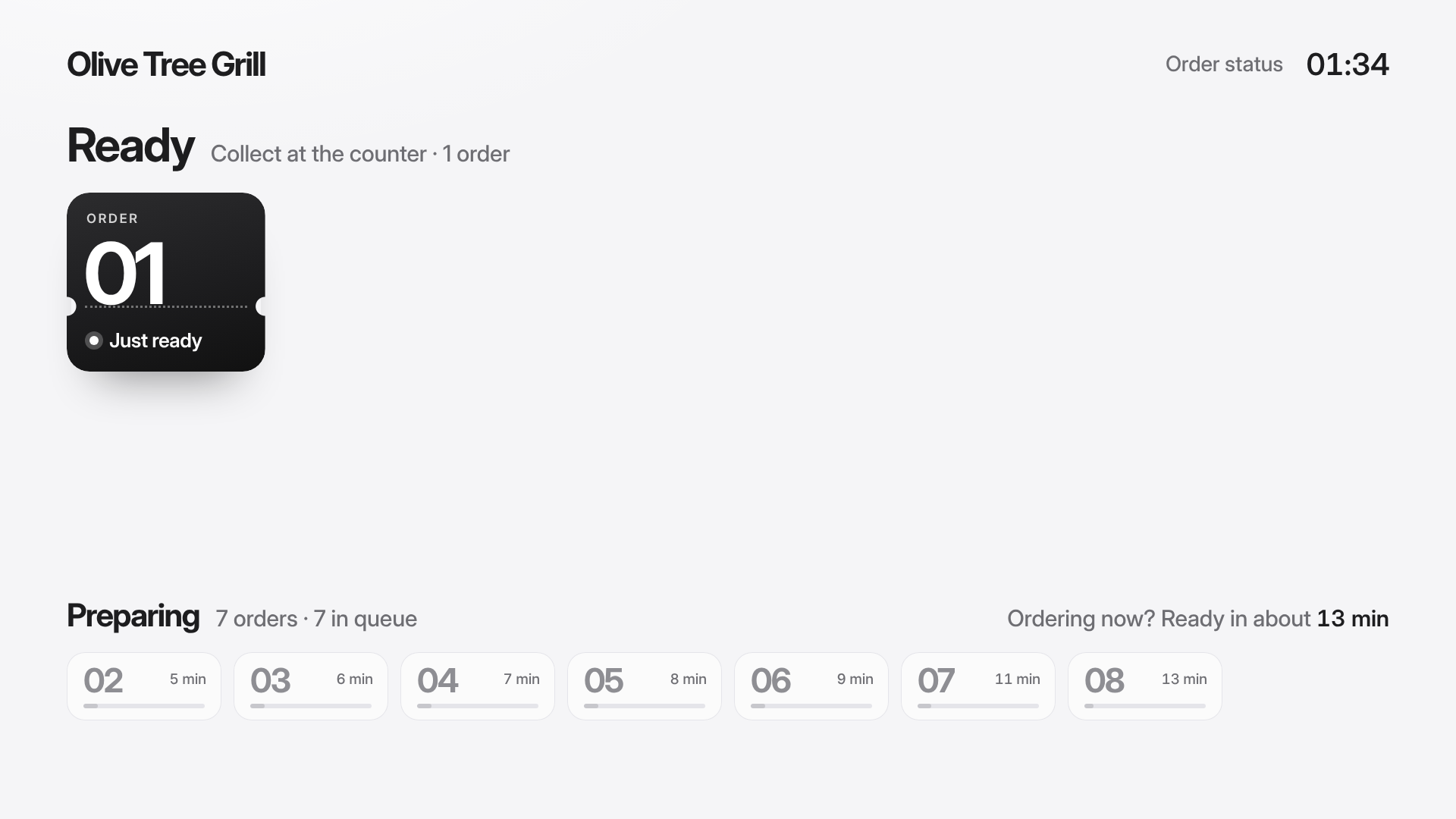
The order status screen shows numbers only: Preparing and Ready. Pair it once with a code, then it updates by itself. Change its look in Settings → Order status screen.
Ce contenu n’est pas encore disponible dans votre langue.
Set it up
-
On the screen near the counter, open the order status screen. It shows Set up this screen.
-
In the back office, open Settings → Order status screen and tap Pair a screen. Type the code from the back office on the screen and tap Connect.
-
On a tablet or phone, you can open the screen link from the same page instead.
What customers see
| Part | What it shows |
|---|---|
| Ready | Numbers to collect. A new one is highlighted for 60 seconds, with a chime |
| Preparing | Numbers being made, with minutes left |
| Ordering now? | How long a new order takes, roughly |
| Still at the counter | Ready orders not collected after 3 minutes |
No names and no dishes are shown.
Change the look
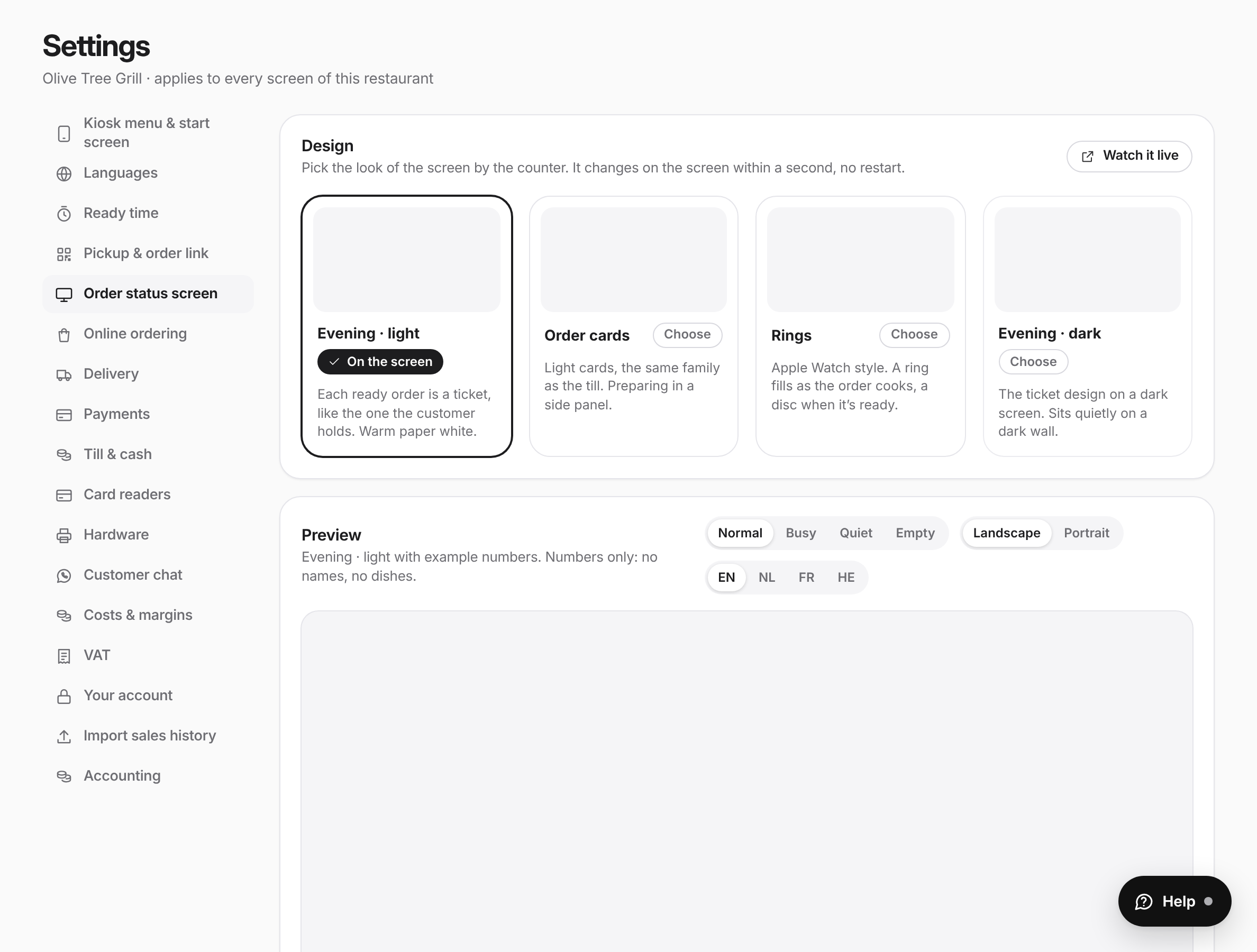
Pick a design. The screen changes within a second, no restart.