Devices & printers
Set up a kiosk
Ce contenu n’est pas encore disponible dans votre langue.
Pair a kiosk
-
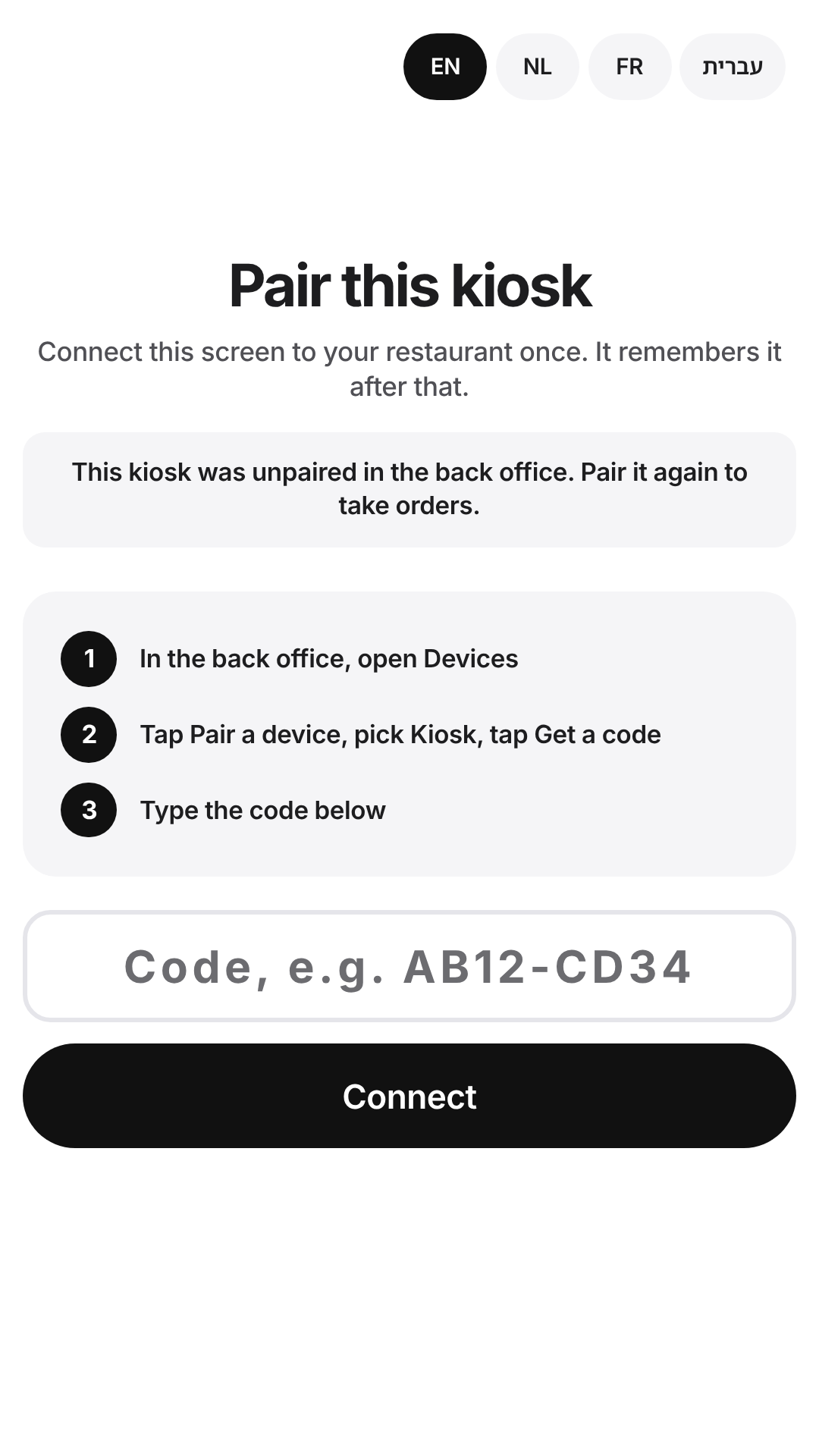
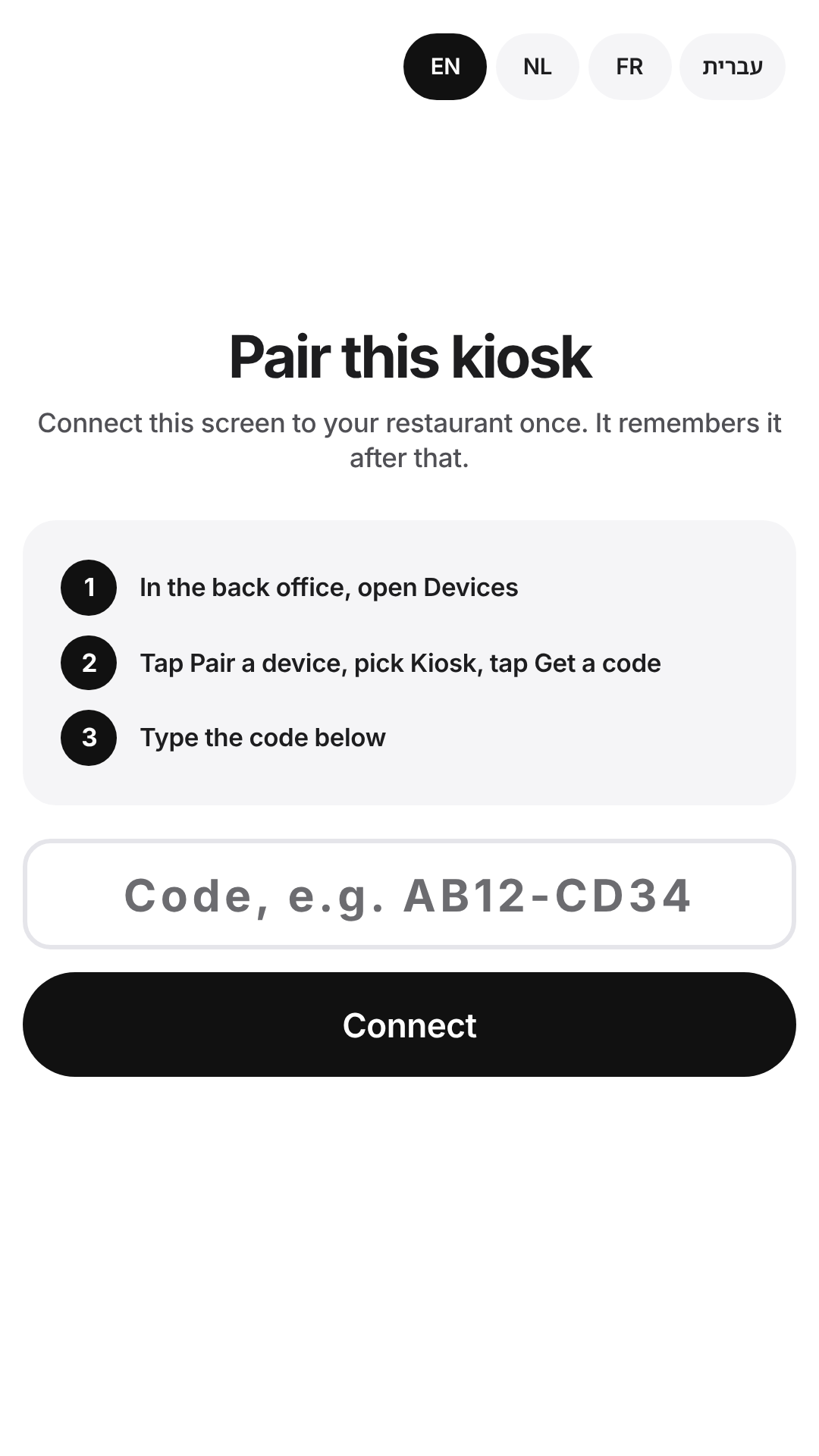
On the kiosk, open servi-kiosk.sites.tab.bot in the browser. It shows Pair this kiosk. The language buttons at the top change the words on this screen.
-
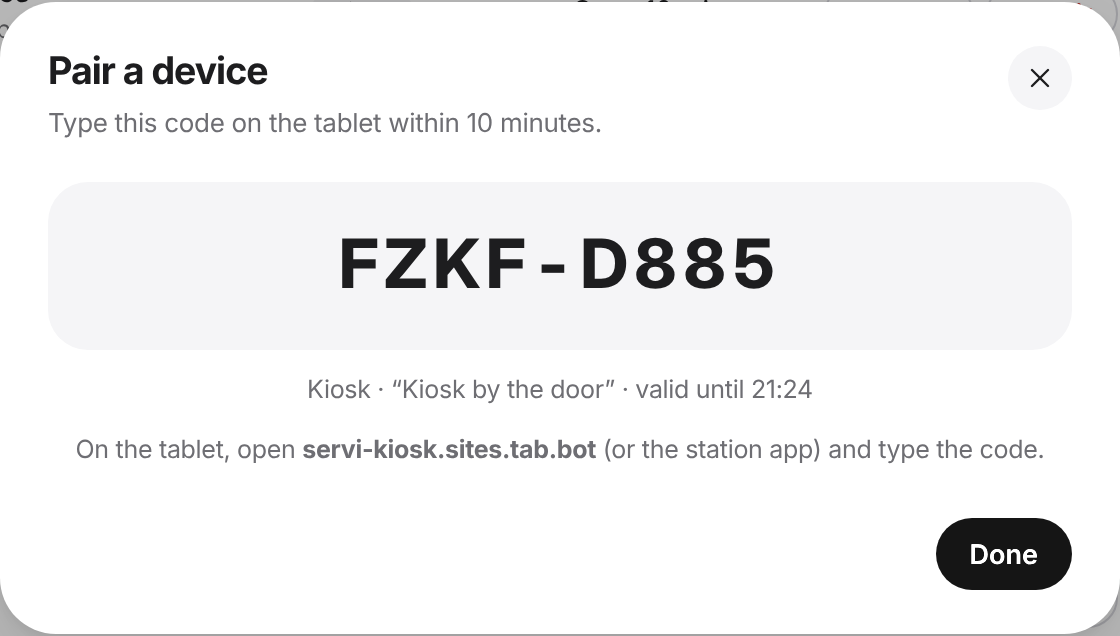
In the back office, open Devices and tap Pair a device. Under Used as, pick Kiosk. Give it a name, like Kiosk by the door, and tap Get a code. The code works for 10 minutes.
-
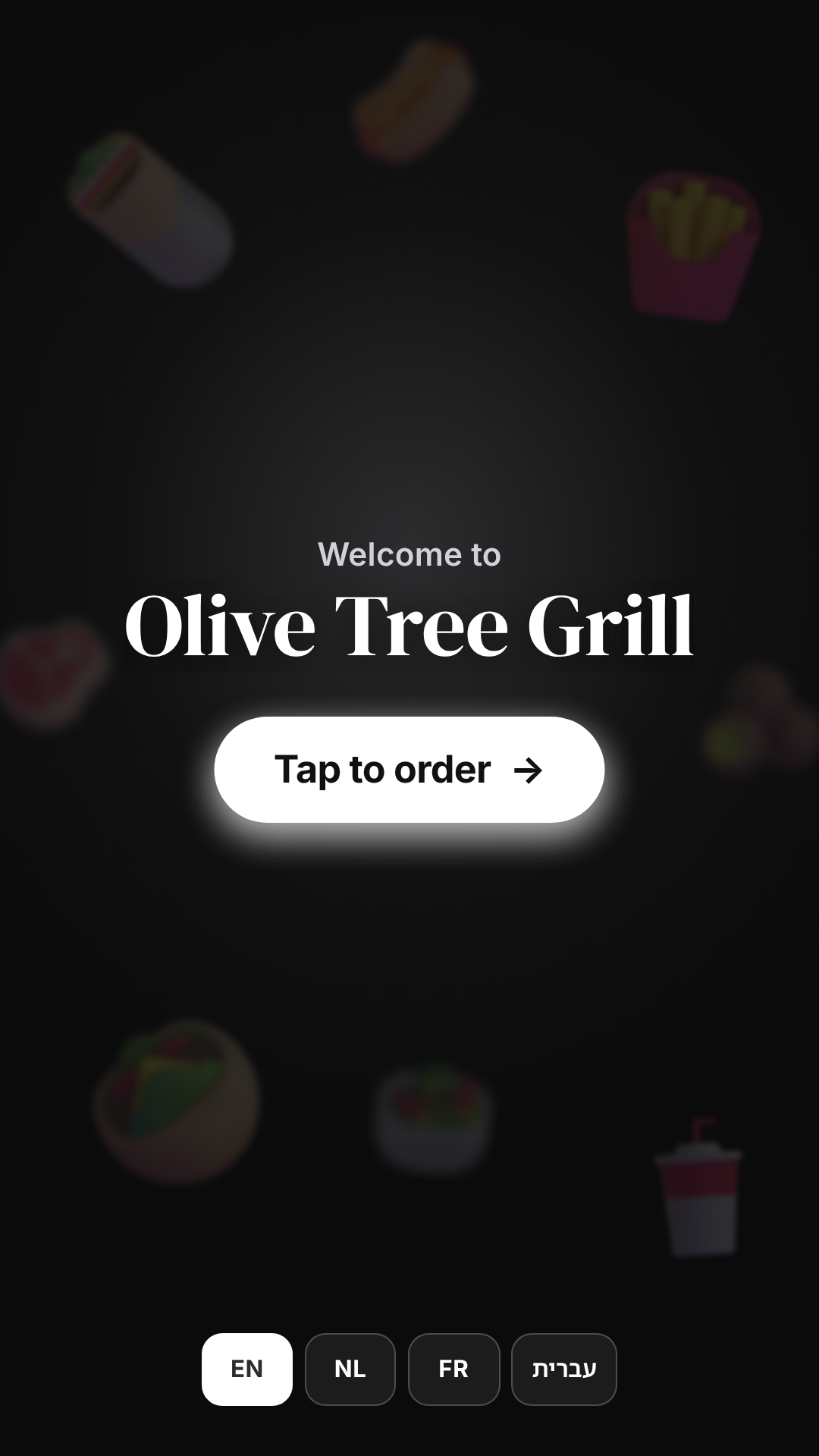
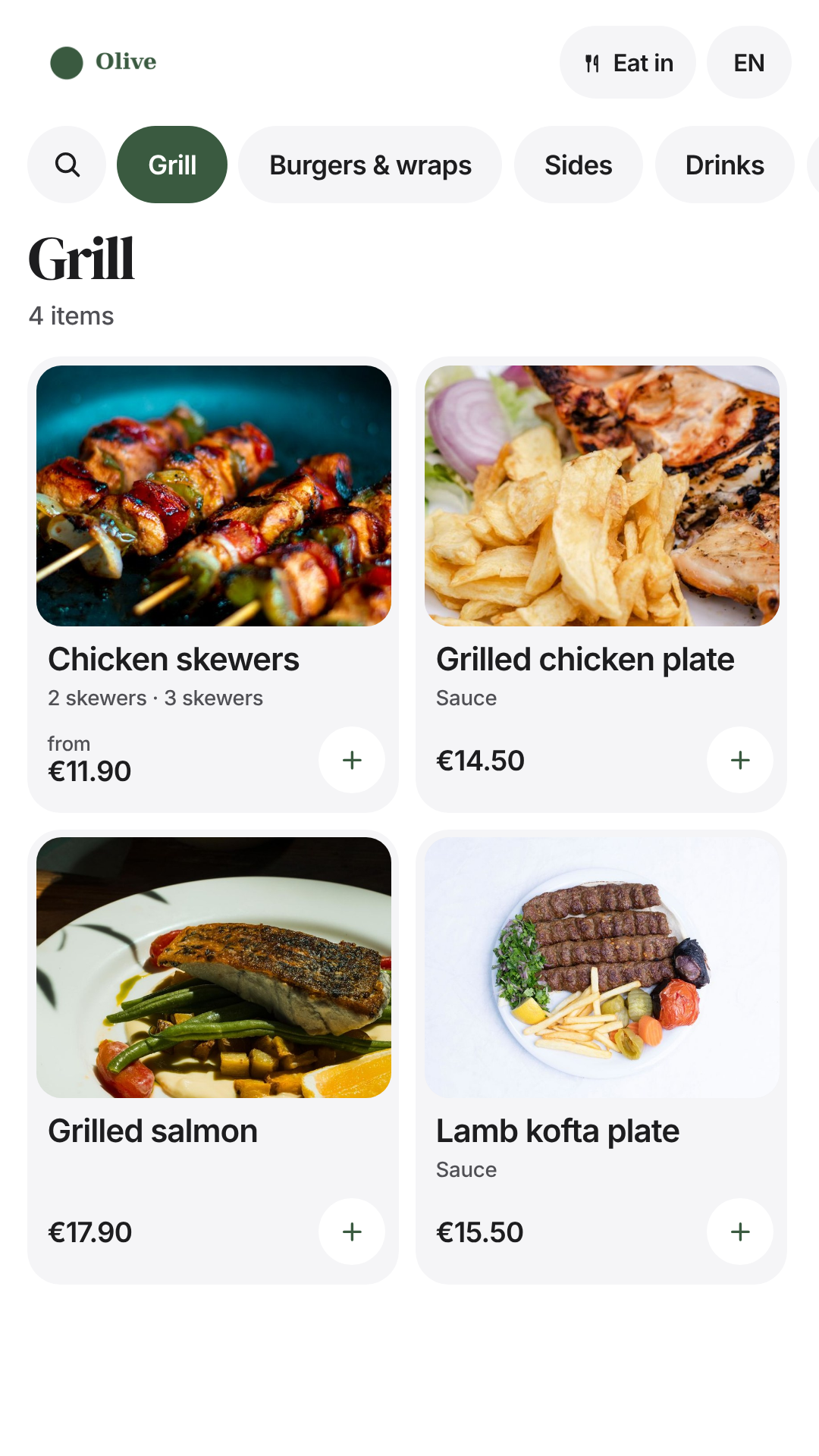
Type the code on the kiosk and tap Connect. The kiosk shows your start screen, your menu and your look. It stays paired, also after a restart.
Unpair a kiosk
In the back office, open Devices, tap the kiosk and tap Unpair. Within a few seconds the kiosk stops taking orders and shows the pairing screen again, with a short note that it was unpaired. To use it again, pair it with a new code.