Payments
Add a card reader
In Settings → Card readers, tap Add a card reader, pair the reader with the code it shows, and choose which till or kiosk it belongs to.
Ce contenu n’est pas encore disponible dans votre langue.
-
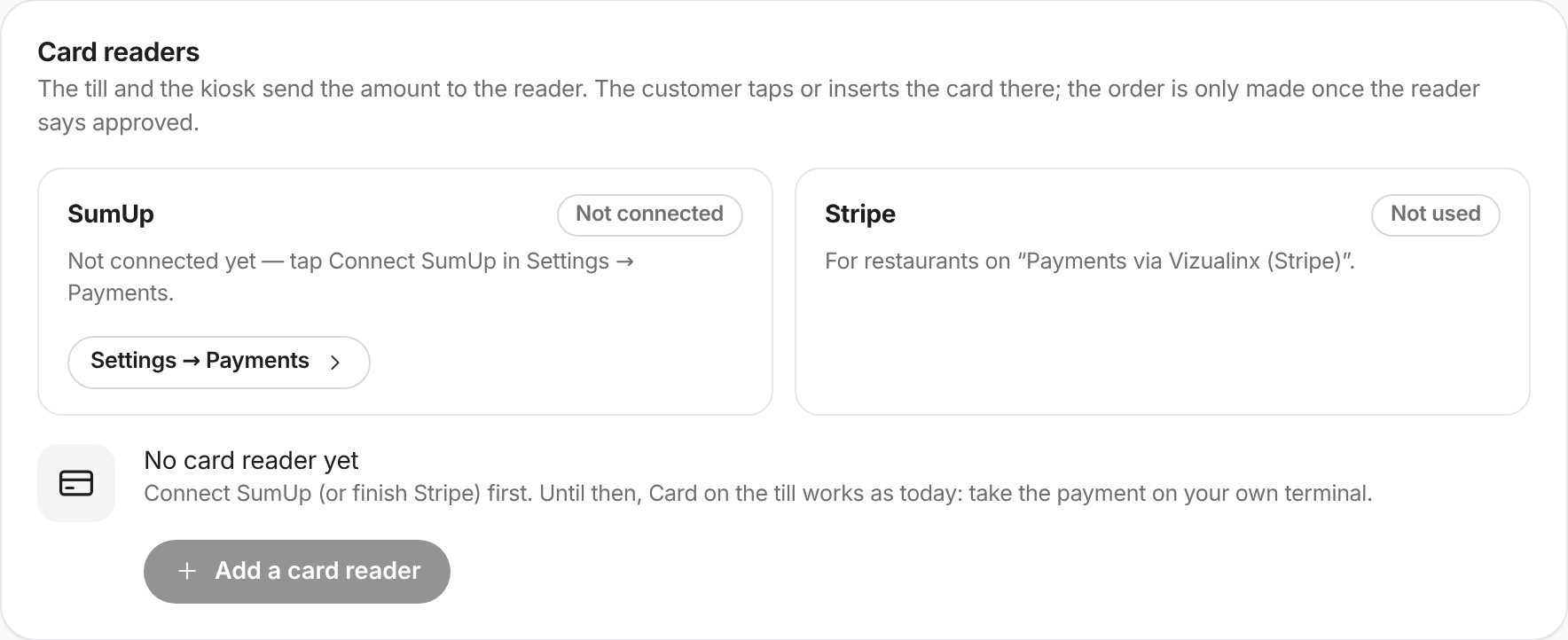
Connect SumUp first in Settings → Payments. Then open Settings → Card readers.
-
Tap Add a card reader. Type the code the reader shows.
-
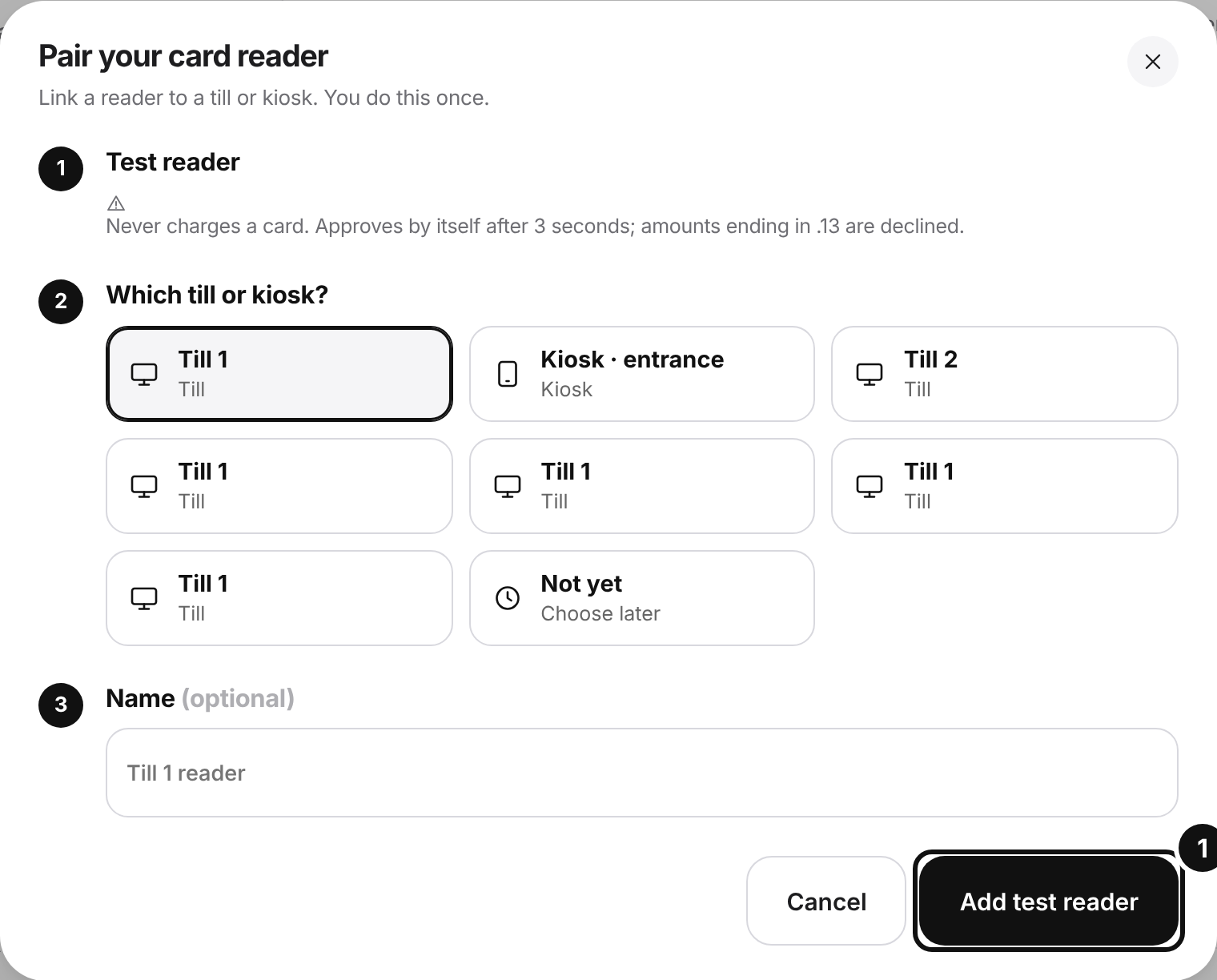
Under Which till or kiosk?, tap the till or kiosk it sits next to. Give it a name if you like, then confirm at the bottom of the sheet.
-
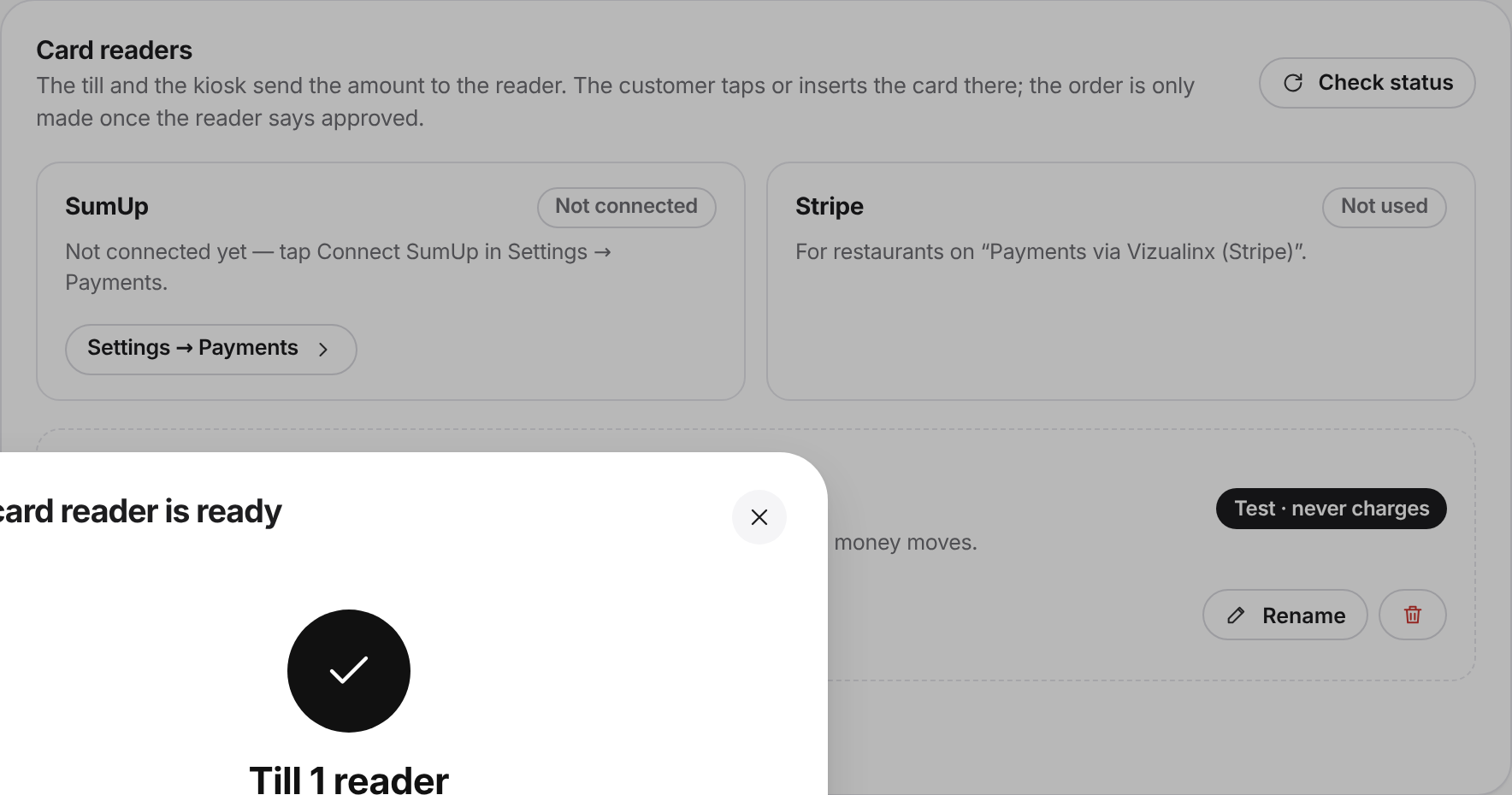
The reader is in the list. The till now sends each card amount to it.
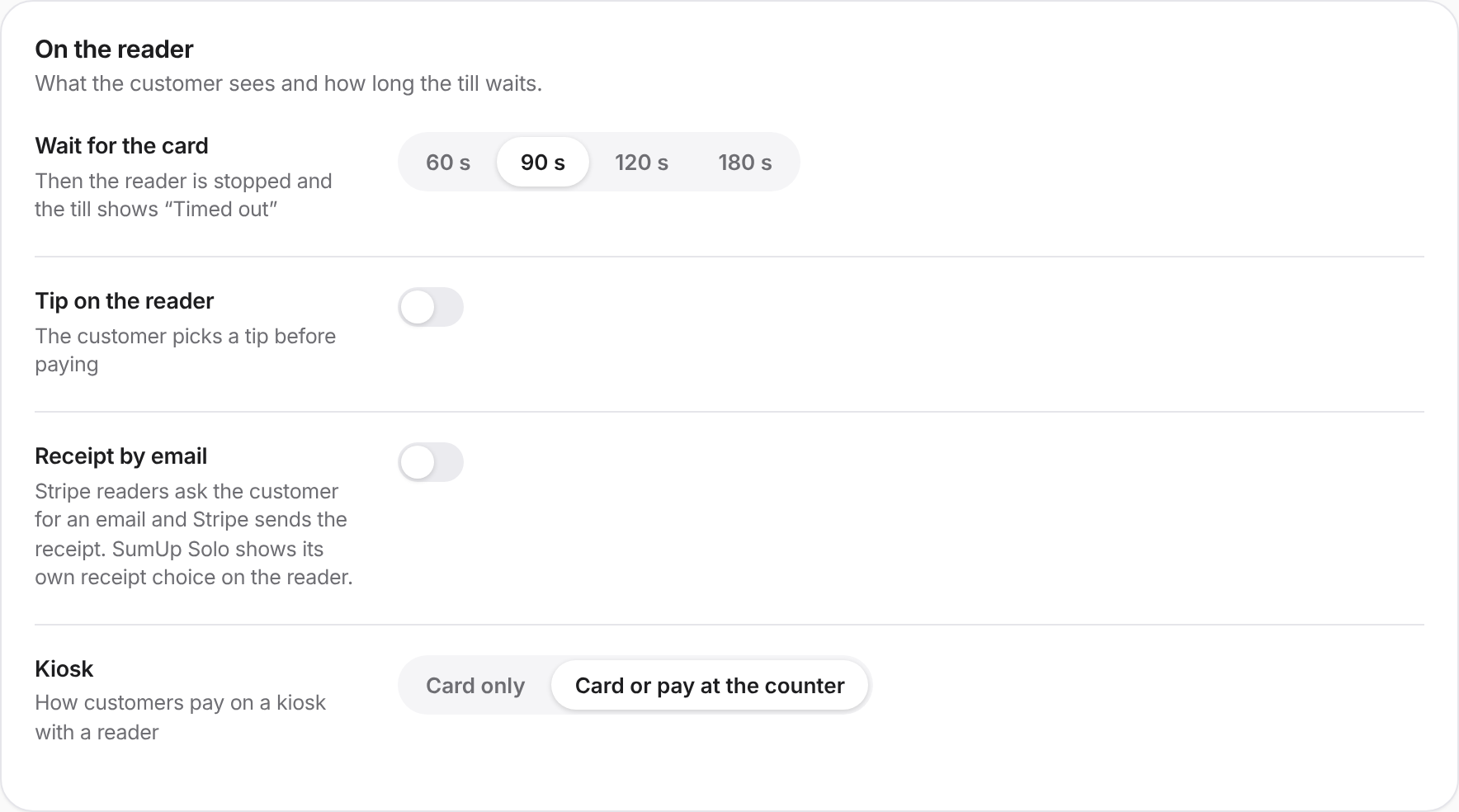
On the reader
| Setting | Starts as |
|---|---|
| Wait for the card | 90 s, then the till shows “Timed out” |
| Tip on the reader | Off |
| Kiosk | Card or pay at the counter |