Shop mode (retail)
Set up a self-checkout
Deze inhoud is nog niet vertaald.
Set it up
-
In the back office, go to Shop → Till & returns and turn on Self-checkout. It’s off until you turn it on.
-
Go to Devices → Pair a device, pick Self-checkout and open the code on the kiosk screen. A shop can only pair a kiosk while Self-checkout is on.
-
Go to Settings → Card readers and put a card reader on the self-checkout. Without a reader, the self-checkout can’t take payments.
What the customer does
-
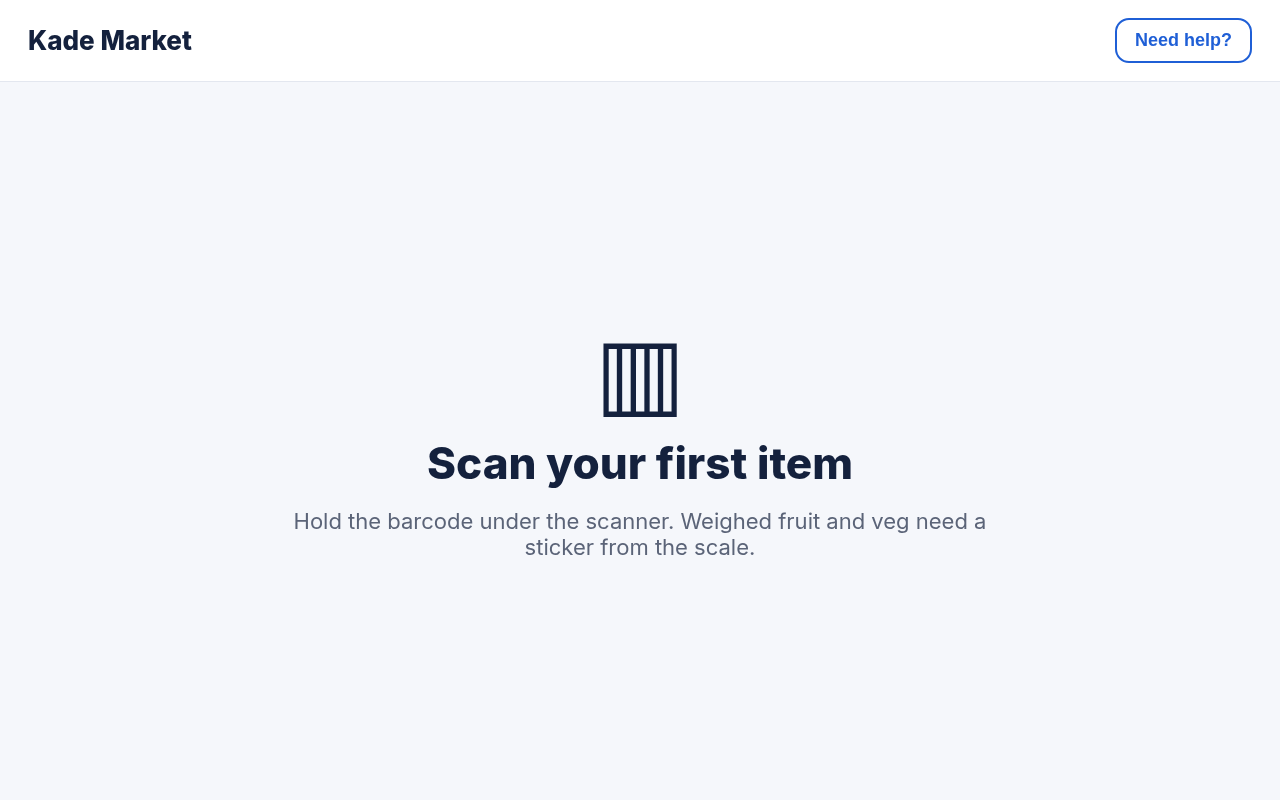
Scan the first item. Weighed fruit and veg need a sticker from the scale (weigh station). For items without a barcode, like bread rolls, tap Type an item code and type the code from the shelf.
-
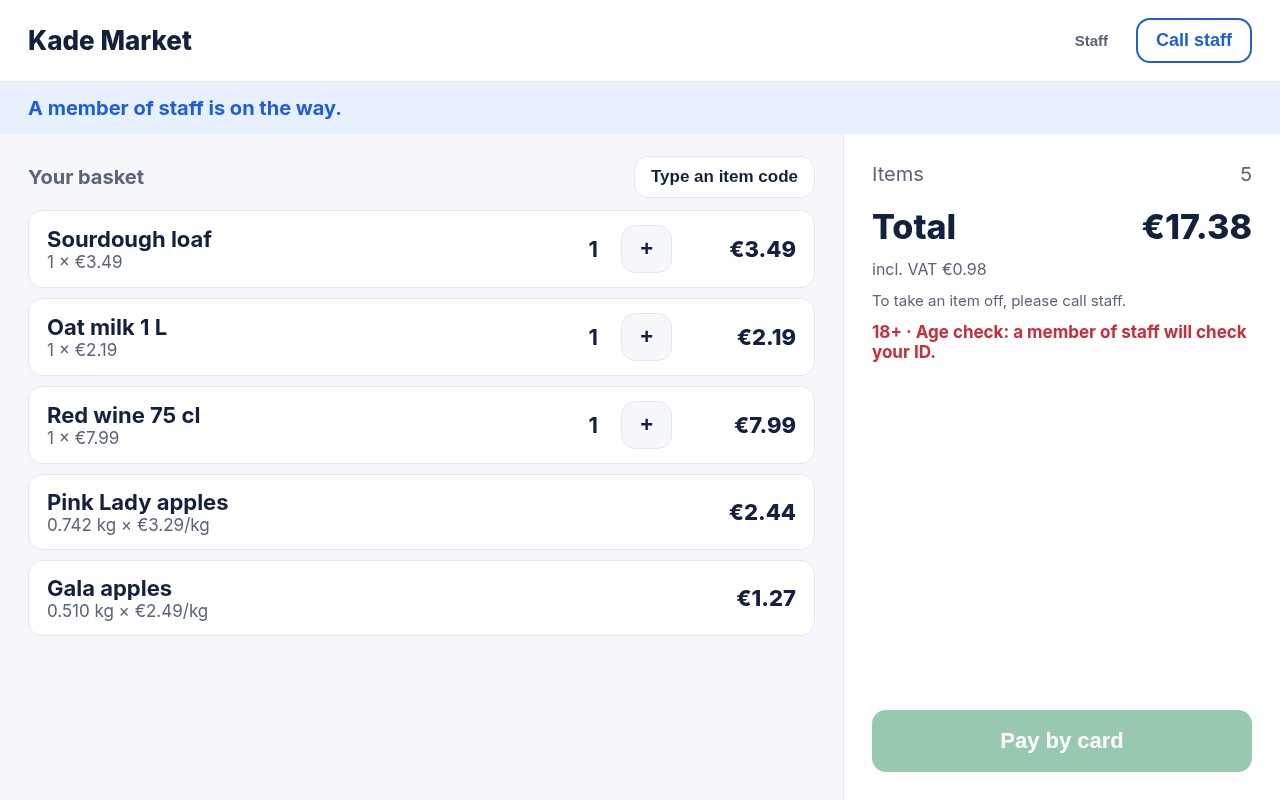
The basket shows every item and the total. Customers can add more with +. To take an item off, they tap Call staff.
-
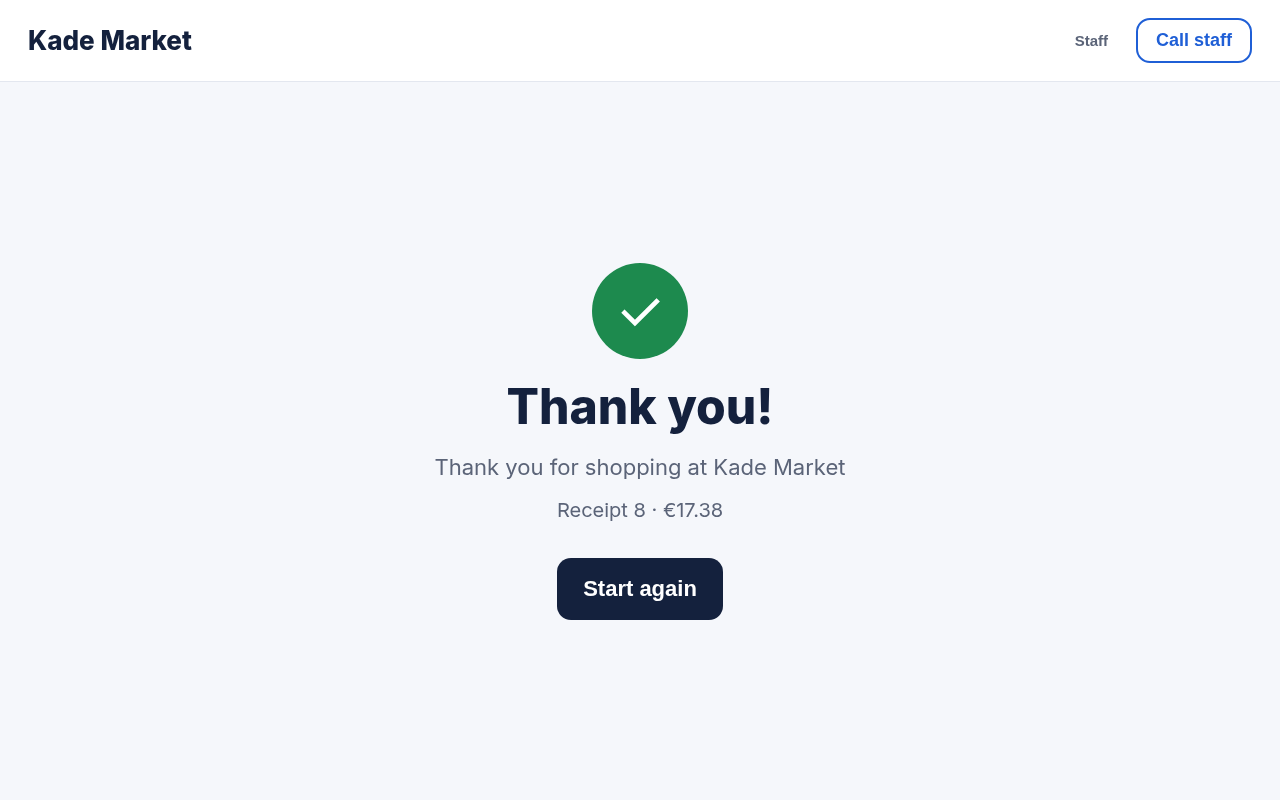
Tap Pay by card and follow the card reader. The sale is made only once the card is approved, for exactly the total on the screen.
What staff do
- Call staff shows on every till of the shop, with the self-checkout’s name. Tap On my way.
- On the self-checkout, tap Staff, then your name and your PIN. Now you can take items off, approve an age check or cancel the sale. You need a PIN that can approve voids.
- Products with a Minimum age (16+, 18+, 21+; set it on the product) lock Pay by card until a member of staff checks the customer’s ID and approves it.