Kitchen
Use the kitchen screen
New orders appear as tickets. Make the food, then tap Done on the ticket. When every station is done, the order number moves to Ready on the order status screen.
Deze inhoud is nog niet vertaald.
Make an order
-
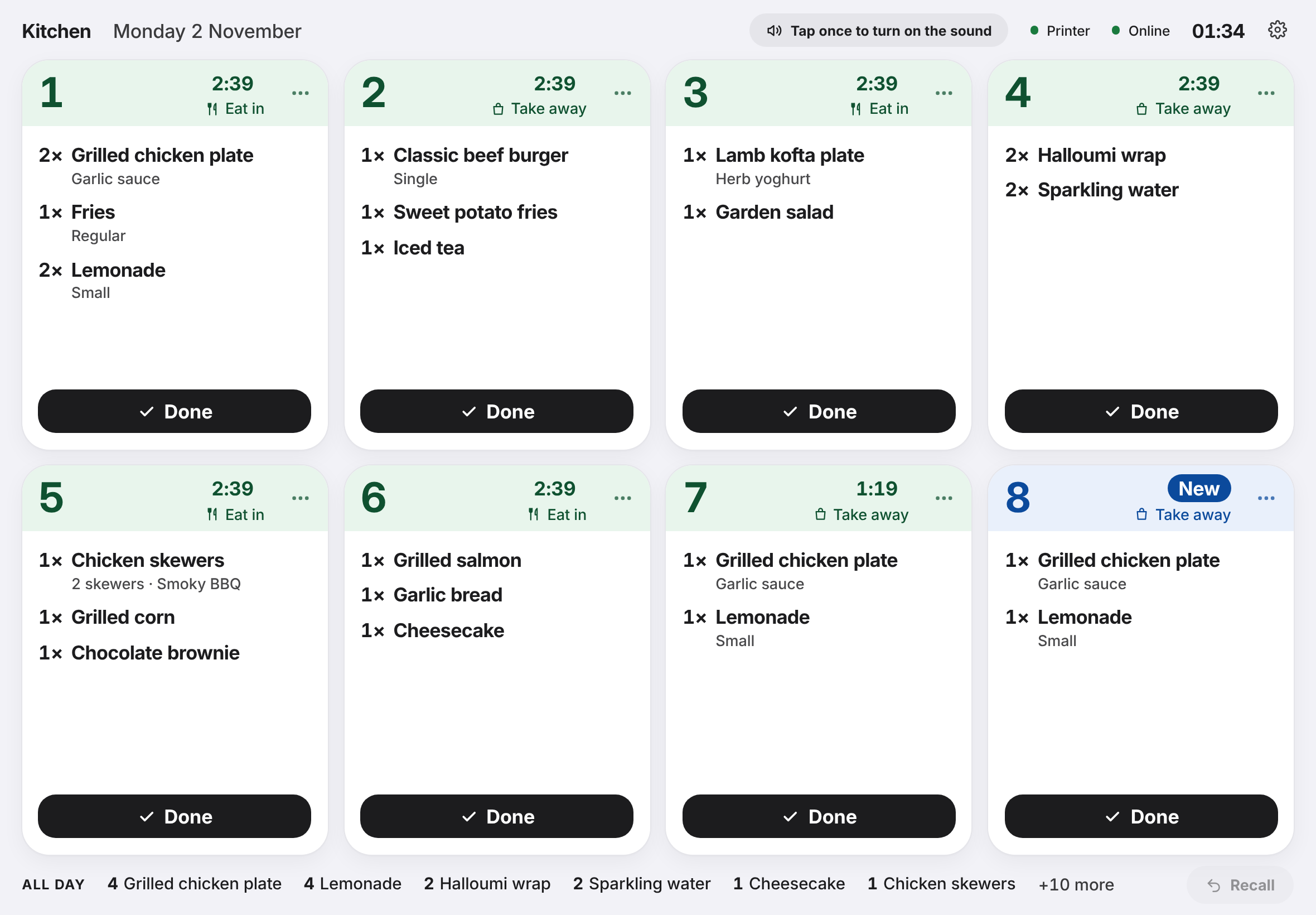
Each order is a ticket: the number, Eat in or Take away, the dishes and their options. The oldest ticket is first.
-
Finished one dish of a bigger order? Tap its line to cross it out. Tap again to undo.
-
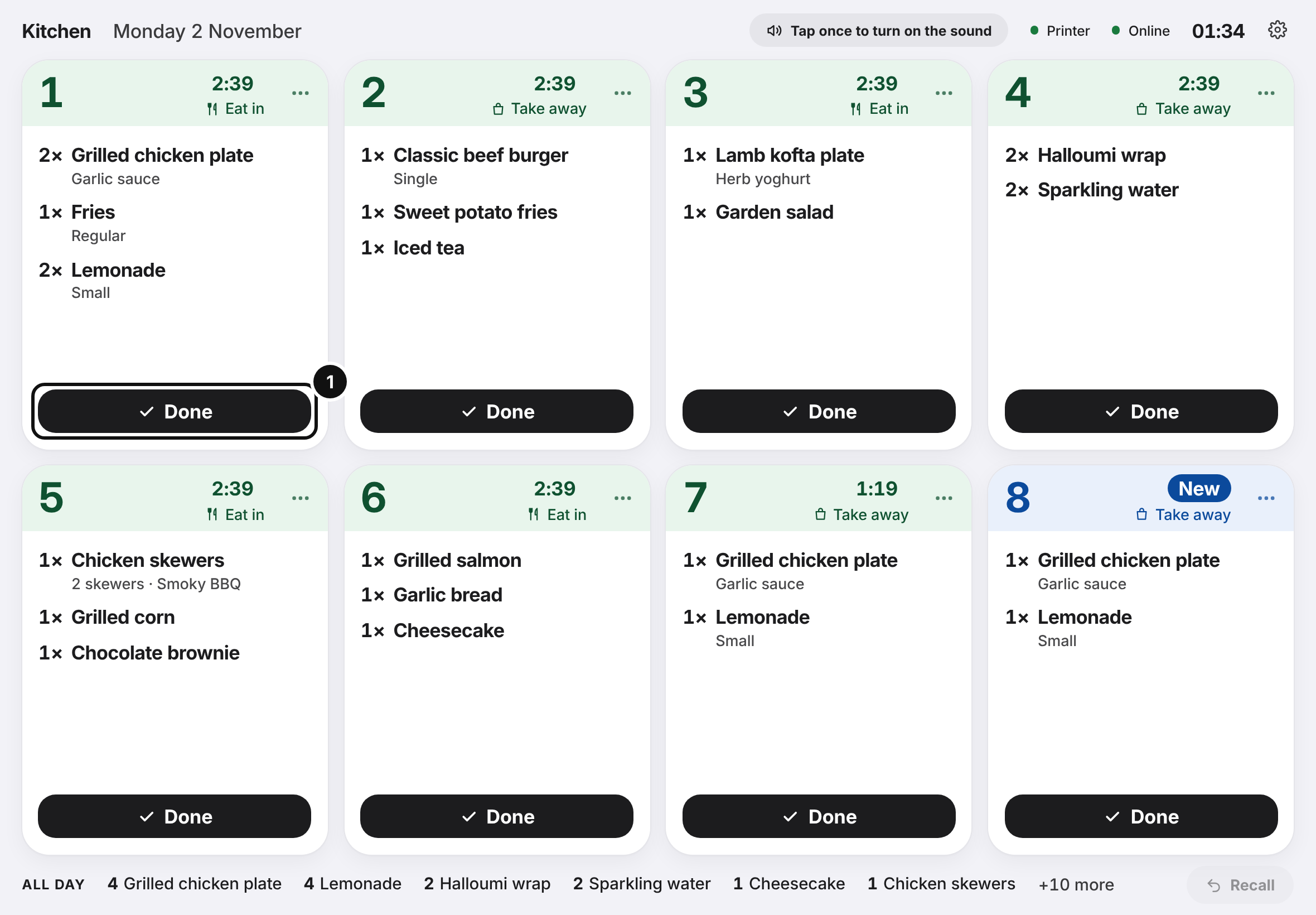
When the order is ready, tap Done. The ticket leaves the screen.
-
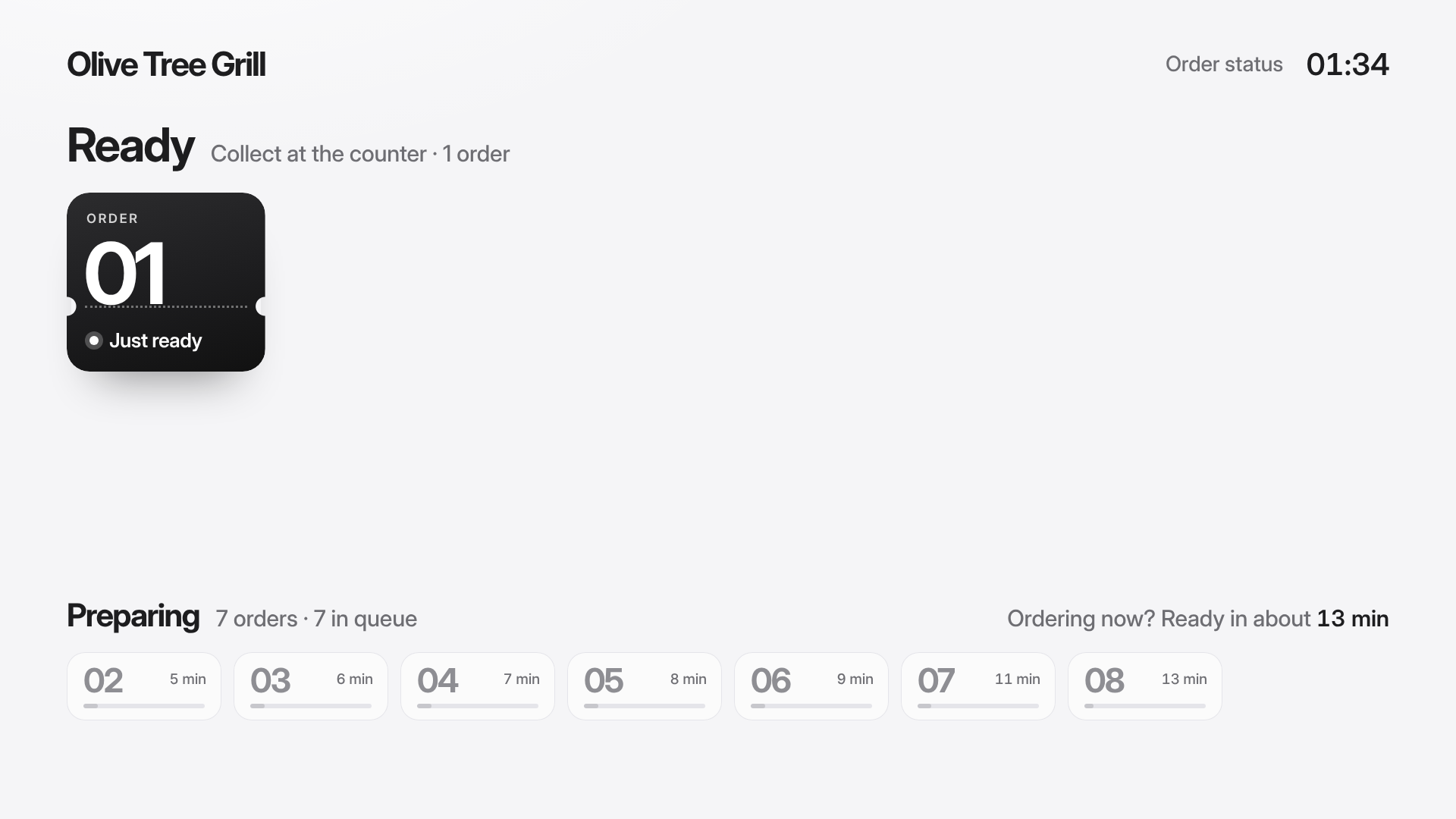
The number shows under Ready on the order status screen, with a chime.
Tapped Done by mistake?
Tap Recall. The last ticket comes back and the order goes back to preparing.
What the colours mean
A ticket gets highlighted after 8 min and its time turns red after 12 min. You can change both in the screen’s settings.
Screen settings
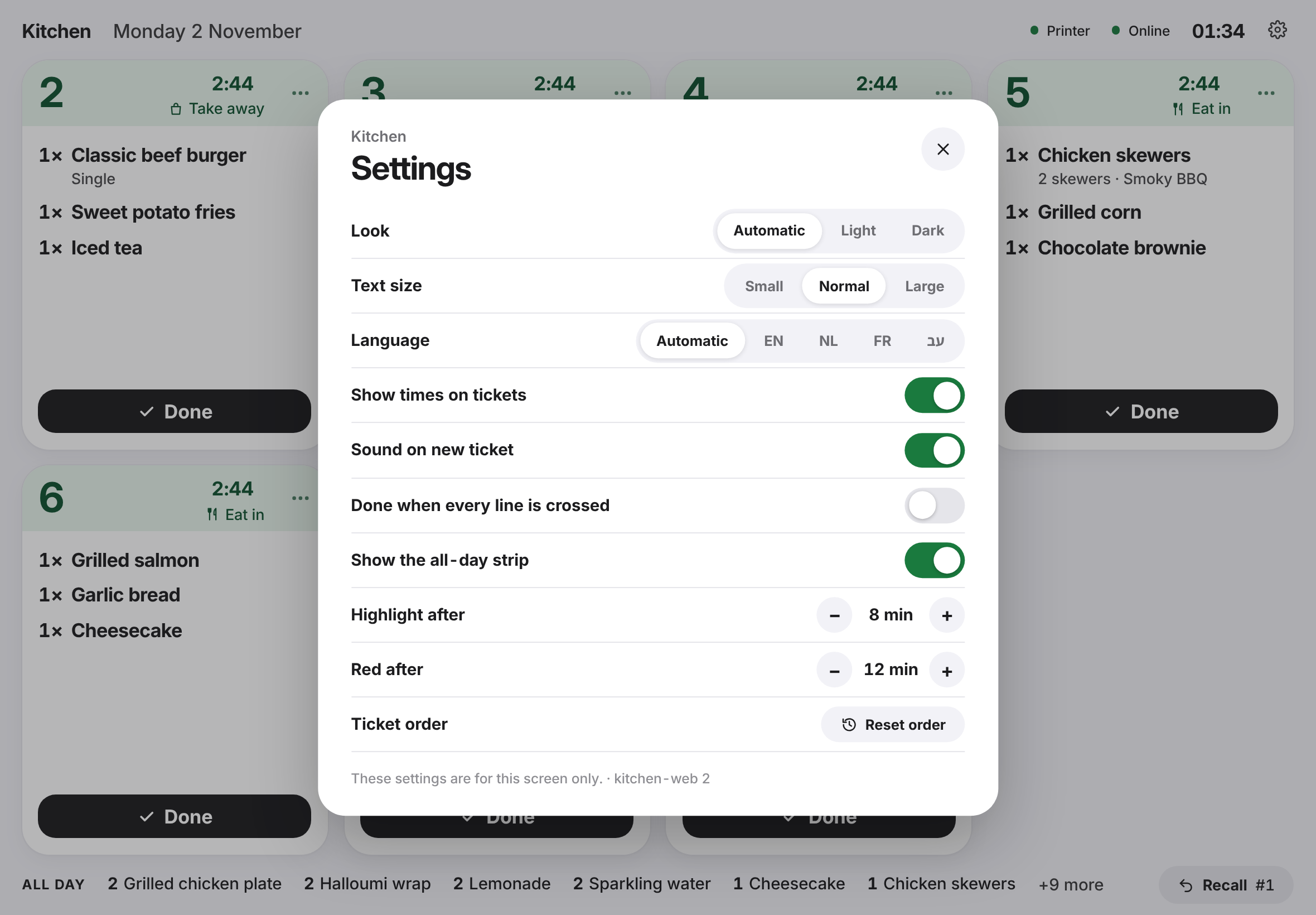
Tap the gear at the top right. These settings are for this screen only.
| Setting | Default |
|---|---|
| Look | Automatic |
| Text size | Normal |
| Language | Automatic |
| Show times on tickets | On |
| Sound on new ticket | On (tap the screen once to allow sound) |
| Done when every line is crossed | Off |
| Highlight after / Red after | 8 min / 12 min |