Menu
Add or change a dish
In Menu, tap Add item, type a name and a price, and tap Add and open. On the dish's page add a photo, sizes and choices. It's on the kiosk and the till at once.
Deze inhoud is nog niet vertaald.
Add a dish
-
In the back office, open Menu. Tap Add item.
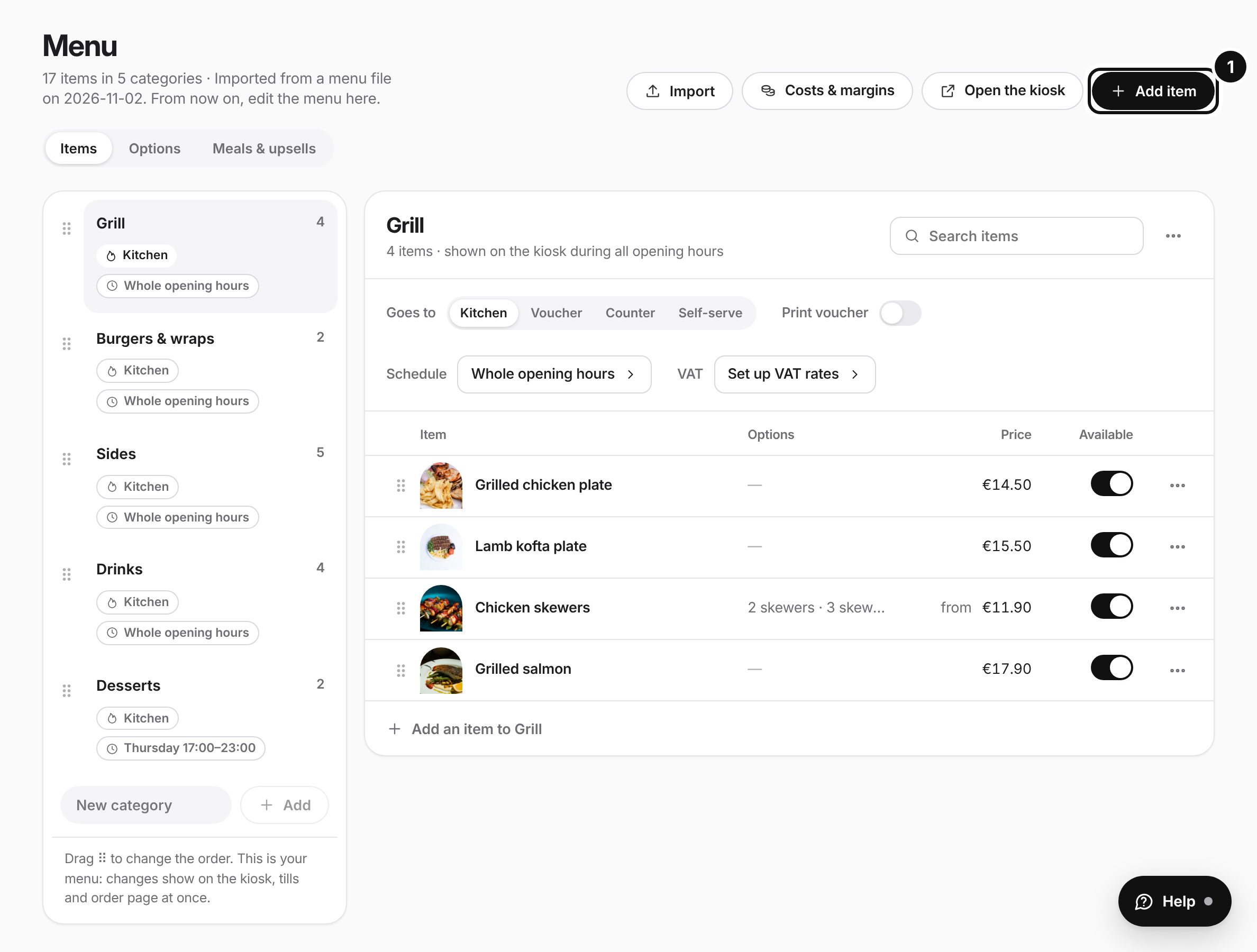
-
Type the Name and Price (with VAT), pick the Category. Tap Add and open. (Add and next adds it and starts the next one.)
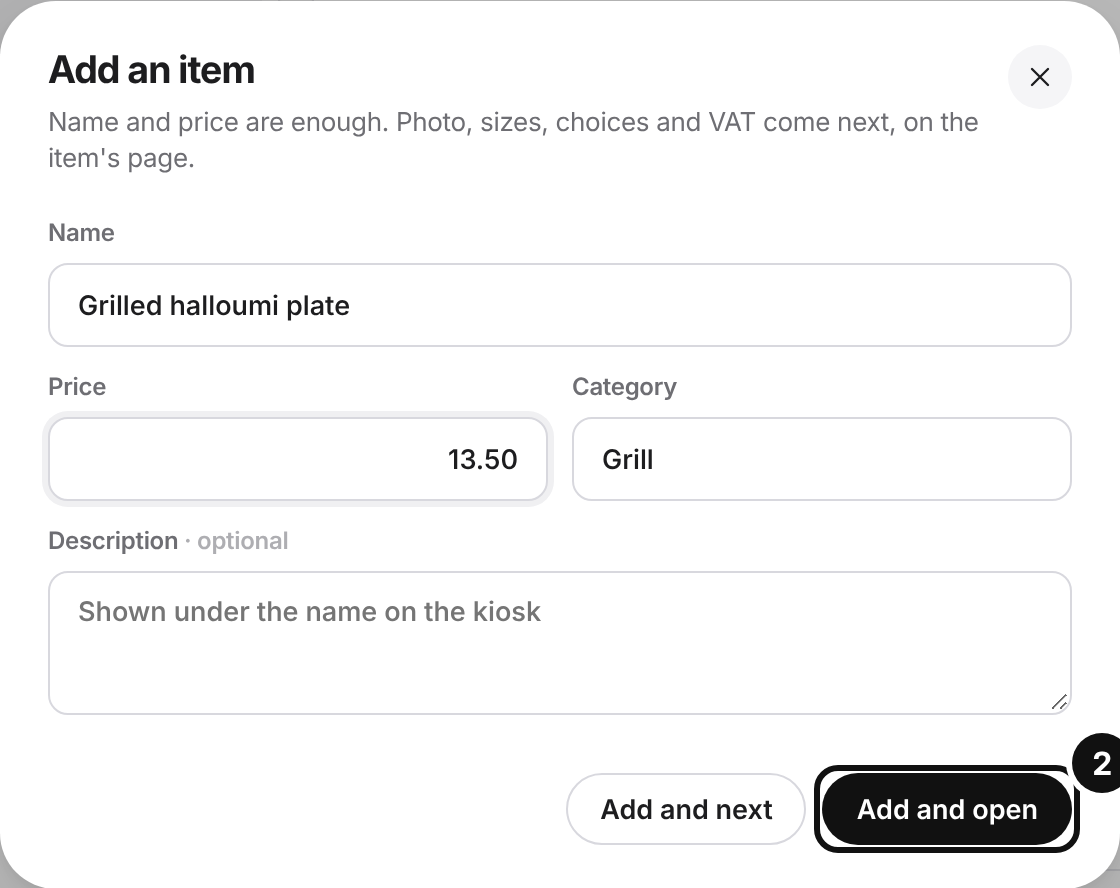
-
On the dish’s page, add a photo (click or drop one: JPEG, PNG or WebP). Add sizes if it has more than one, each with its own price.
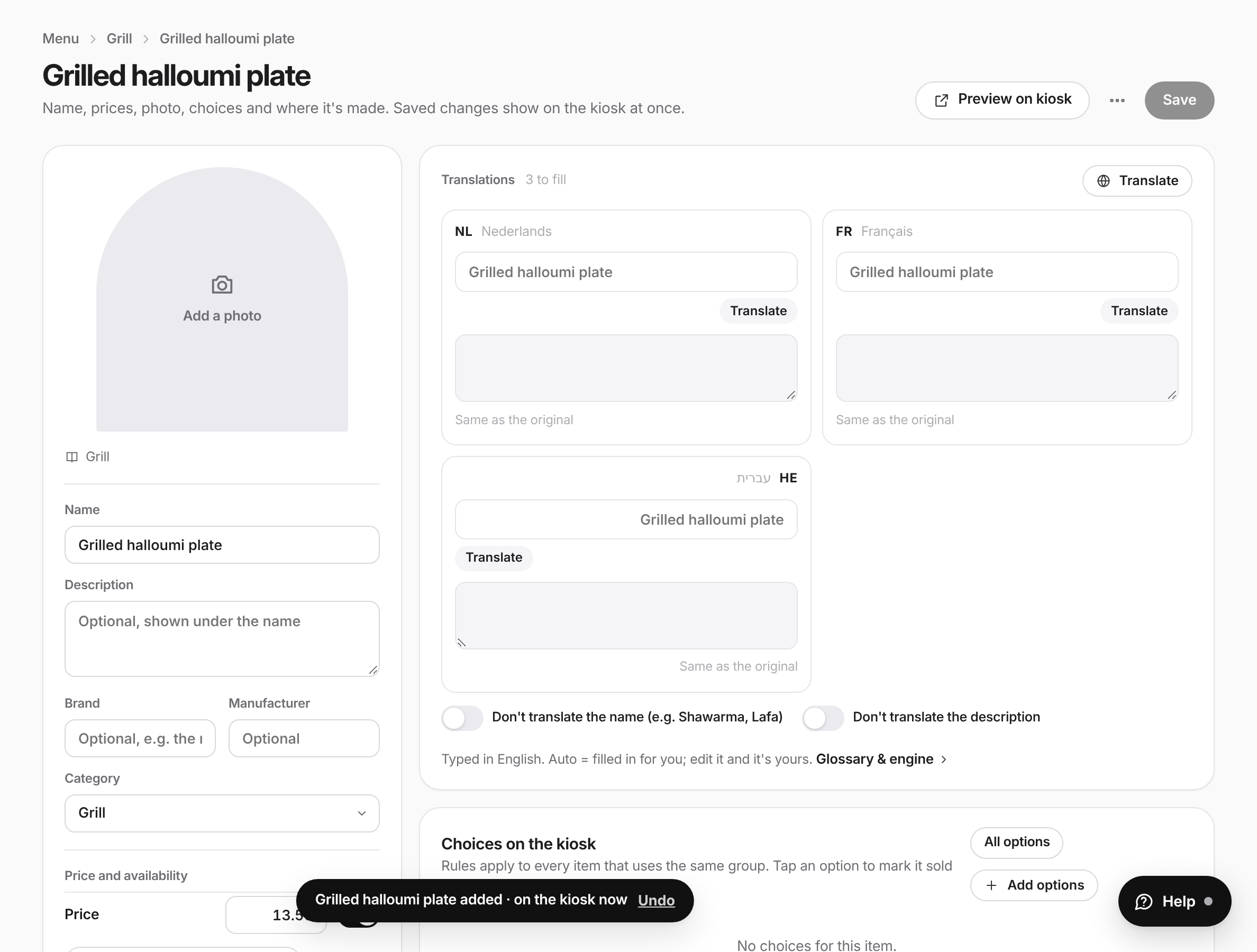
-
Under Choices on the kiosk, add the option groups it uses, like a sauce. Options and extras
Change a dish
Tap the dish in Menu, change what you need and tap Save. The kiosk and the till update right away.
More on the dish’s page
| Setting | What it does | Default |
|---|---|---|
| Served at | Which station makes it | Same as its category |
| Print voucher | Hand it out at the counter with a voucher | Off |
| Prep time | Minutes used for “Ready in about …” | Store default |
| Show on kiosk | Off hides it without deleting it | On |
| VAT eat in / take away | Its own VAT rate | Same as the category |