Shop mode (retail)
Add a product
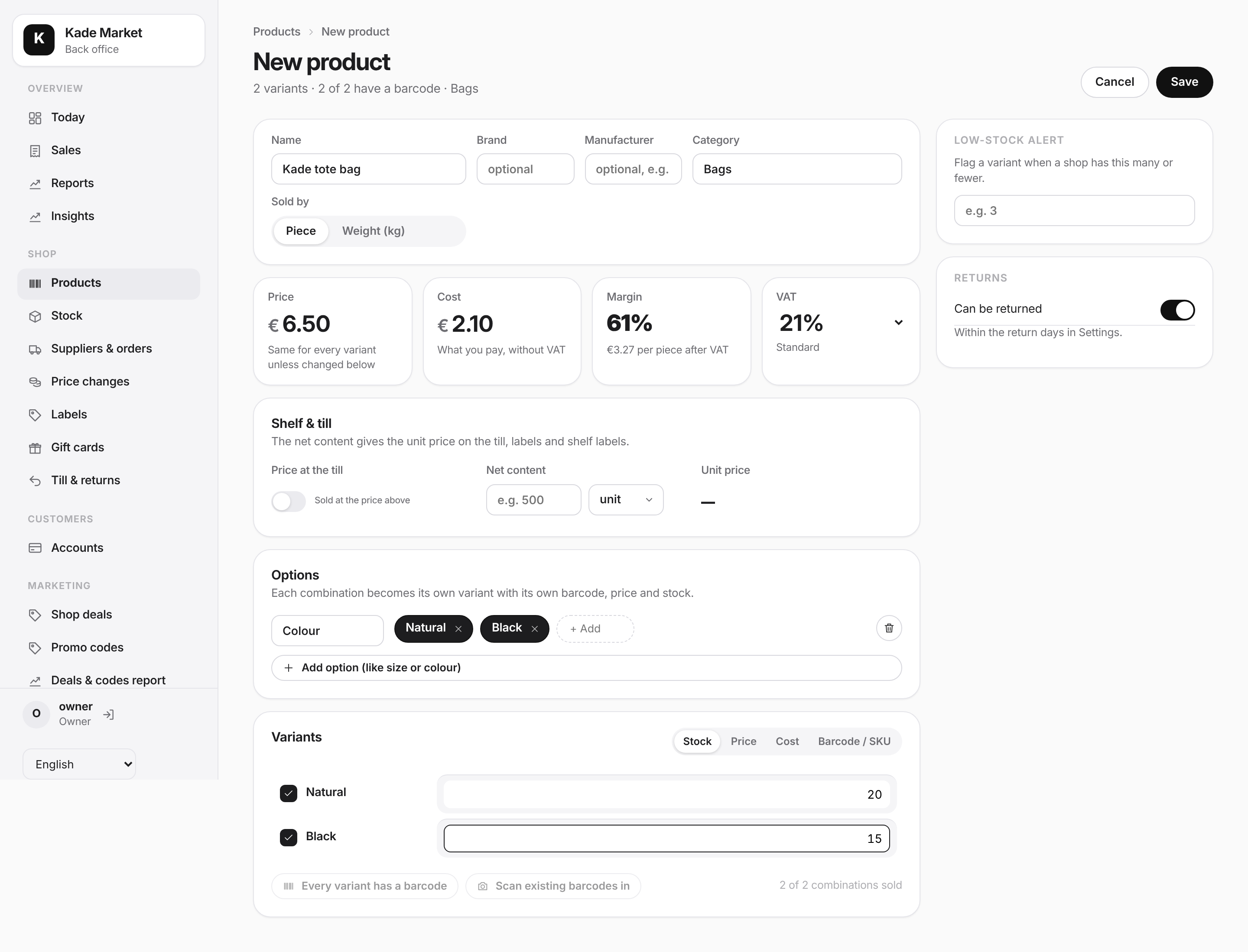
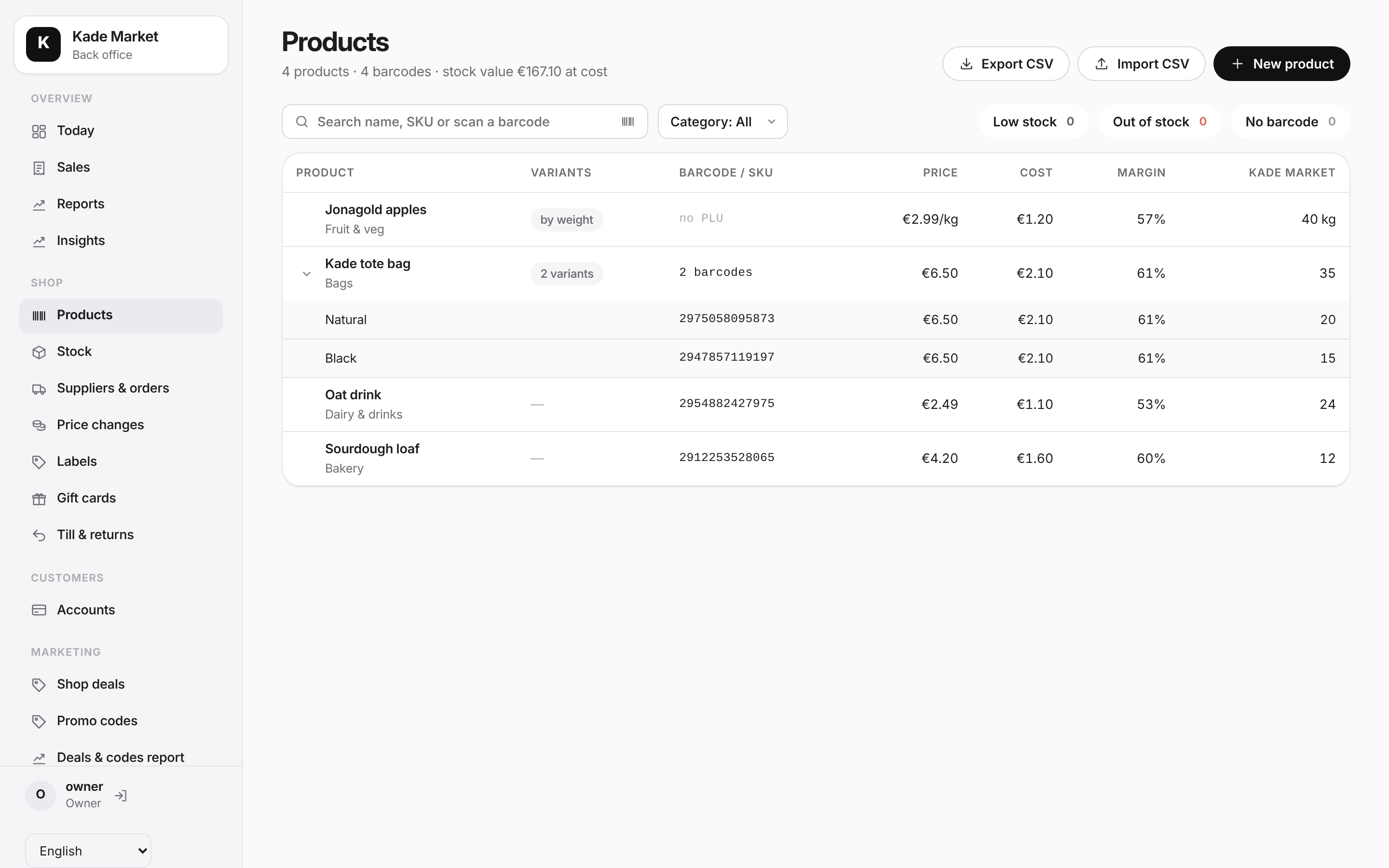
Open Products, tap New product, fill in the name, price, cost and VAT, add options like Colour, tap Make barcodes, type the stock and tap Save.
Deze inhoud is nog niet vertaald.
-
Open Products and tap New product.
-
Type the Name and Category. Brand and Manufacturer are optional. Pick Sold by: Piece or Weight (kg).
-
Type the Price (with VAT) and the Cost (what you pay, without VAT). The Margin works itself out. Pick the VAT rate.
-
Sizes or colours? Under Options, type the option name (like Colour) and add each value. Every combination becomes its own variant. Untick one you don’t sell.
-
Tap Make barcodes for variants without one, or Scan existing barcodes in to use the codes already on your products.
-
Under Variants → Stock, type how many you have of each.
-
Tap Save.
Every setting
| Setting | Starts as |
|---|---|
| VAT | 21% |
| Can be returned | On (within the return days in Settings) |
| Price at the till | Off: sold at the price above |
| Low-stock alert | Empty: no alert |