Shop mode (retail)
Set prices from a margin, quantity prices and price lists
תוכן זה אינו זמין עדיין בשפה שלך.
-
In the back office, go to Shop → Till & returns. Under Back office tools, turn on Pricing rules. It’s off until you turn it on. Pick the Rounding: none, .99 or .95. If you like, turn on New cost on a delivery: re-price to the target margin.
-
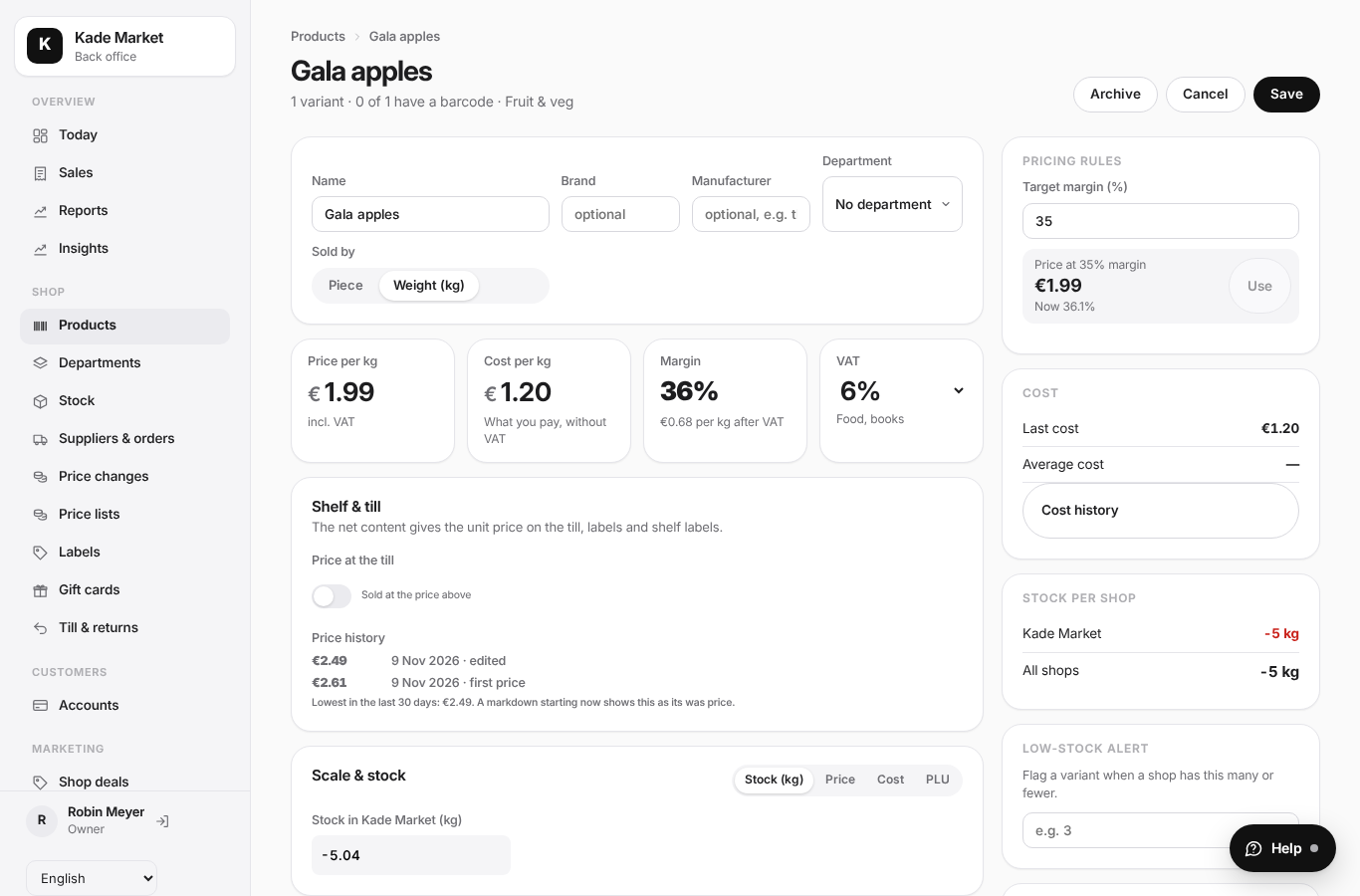
Price from a margin: open a product. Under Pricing rules, type a Target margin. You see the price at that margin; tap Use to take it. A product without its own target takes the one of its department.
-
Quantity prices: on the same card, tap Add a quantity price, for example 6 or more at 0.89 each. The till uses it by itself when the customer buys that many.
-
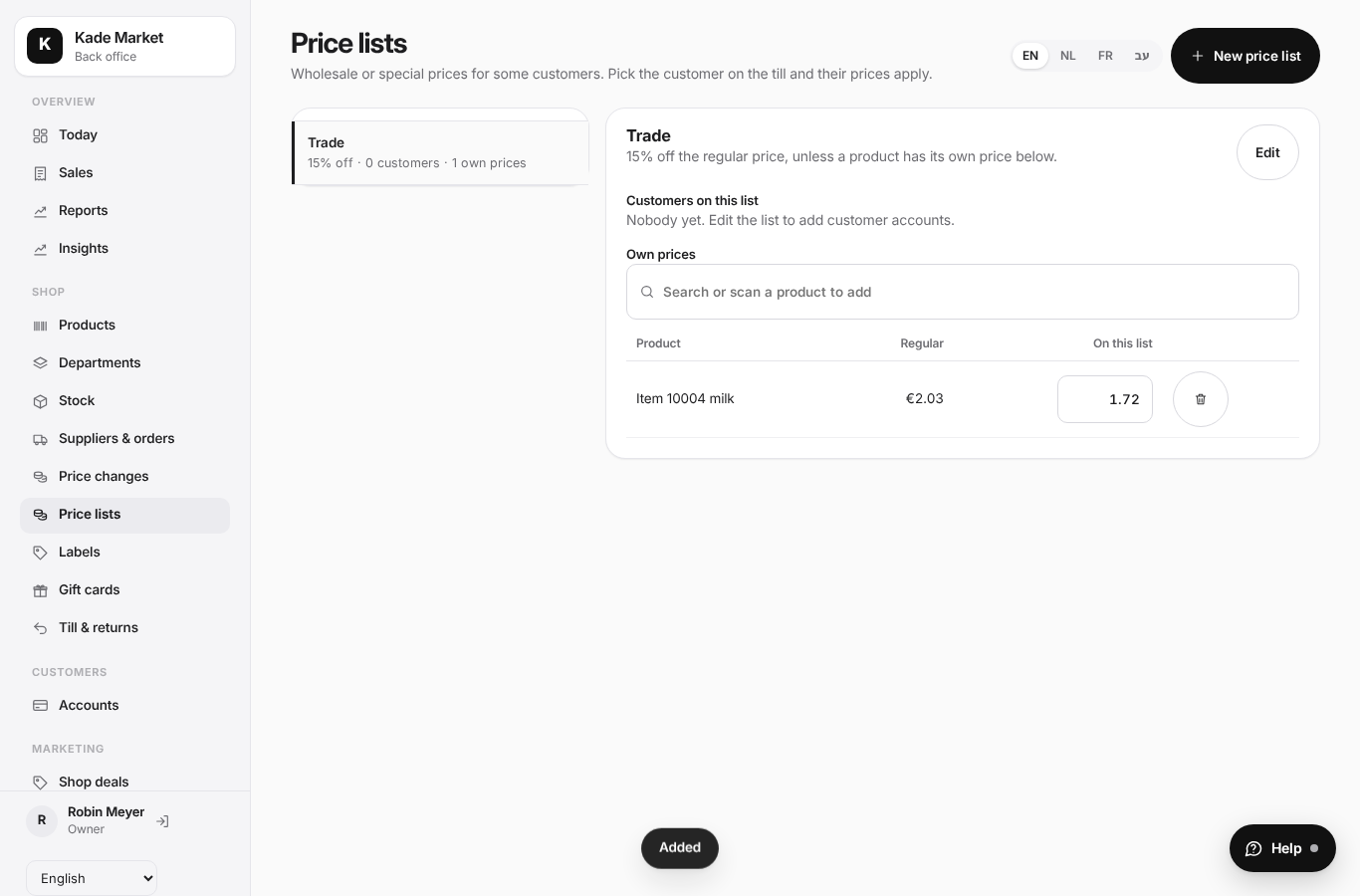
Price lists: open Price lists in the side menu and tap New price list. Give a % off the regular price, and add the customer accounts that get it. Add a product to give it its own price on the list. On the till, pick the customer and their prices apply.