Shop mode (retail)
Pick and pack online orders
תוכן זה אינו זמין עדיין בשפה שלך.
-
The Picking tab shows on the shop till when the online shop is on (Settings → Online shop → Picking on the till). Orders are listed by pickup or delivery time.
-
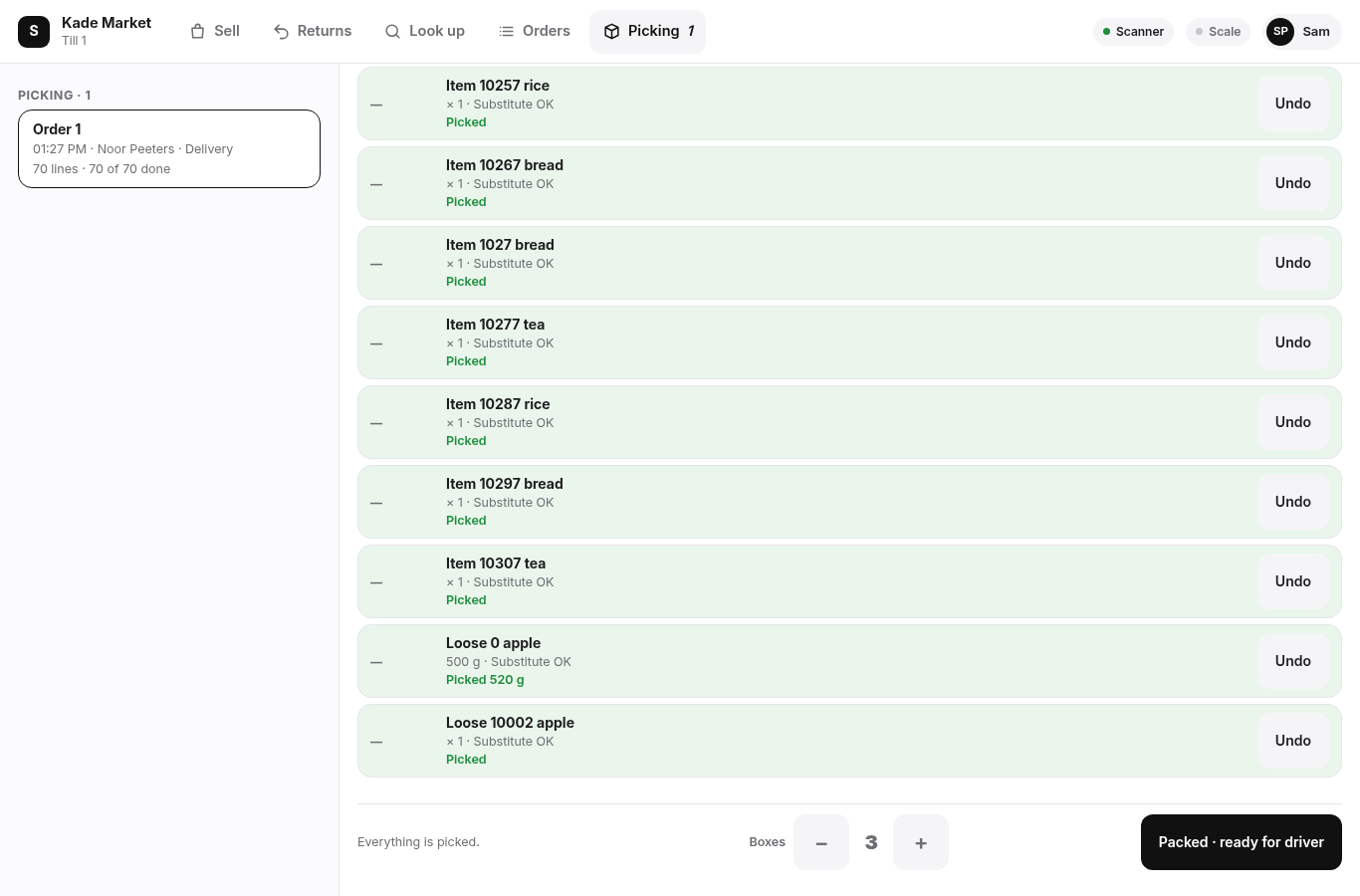
Tap an order, then Start picking. Lines are in walking order (aisle, bay, shelf). Scan each item: a line is done when all of it is scanned. Or tap All picked.
-
Weighed product: tap Weigh, put it on the scale and tap Read the scale, or type the grams. The customer pays the real weight.
-
Not enough on the shelf: tap Short and type how many you found. The customer pays only for those.
-
Substitute shows only when the customer allowed it. Scan the replacement. The customer never pays more than for what they ordered.
-
When everything is picked, set the number of Boxes and tap Packed · ready for driver (or ready to collect). Each box gets a label like “Order 123 · box 2 of 3” on the label printer. No label printer: write the order number on each box.