Devices & printers
Pair a device
תוכן זה אינו זמין עדיין בשפה שלך.
Pair a screen
-
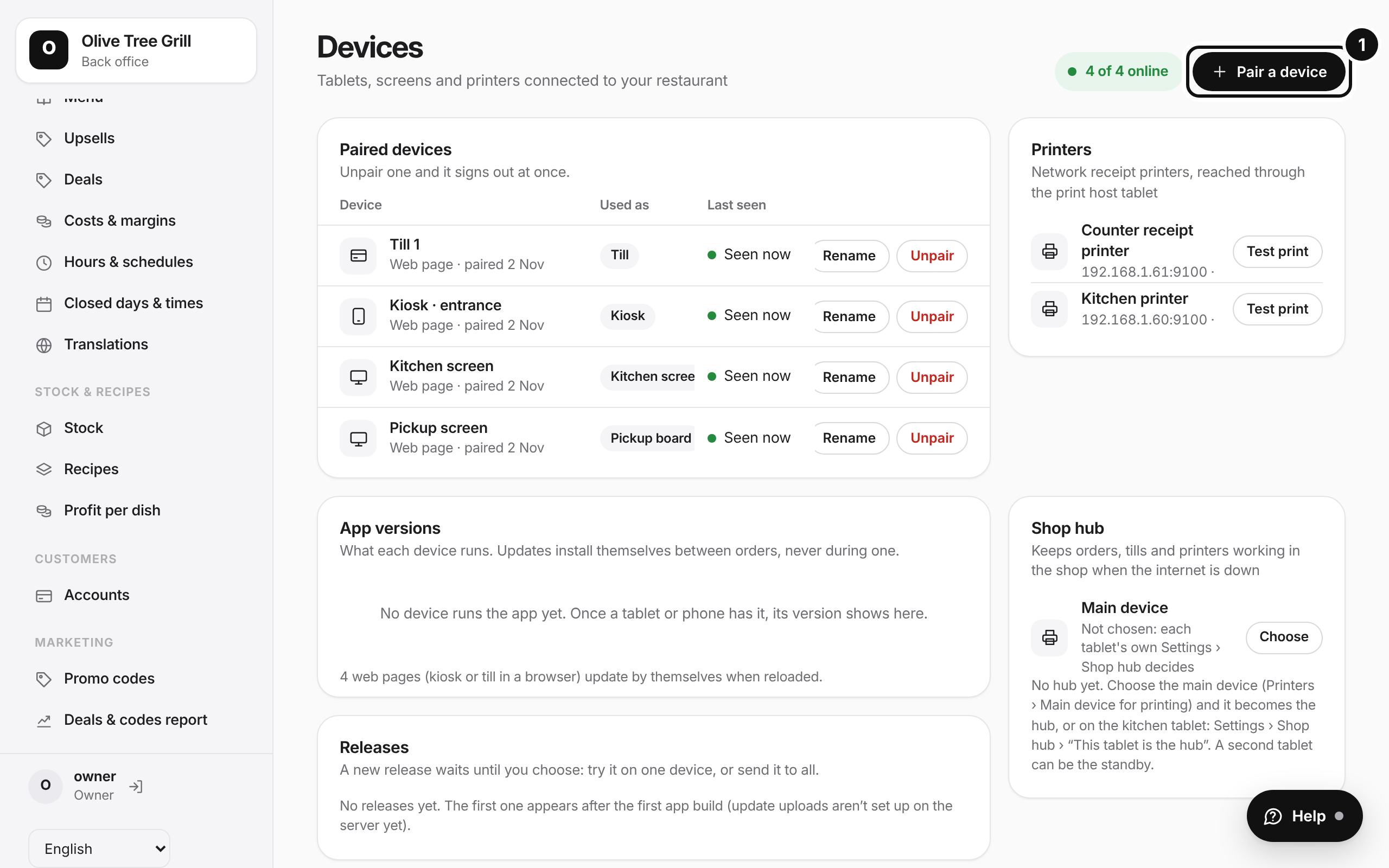
In the back office, open Devices. Tap Pair a device.
-
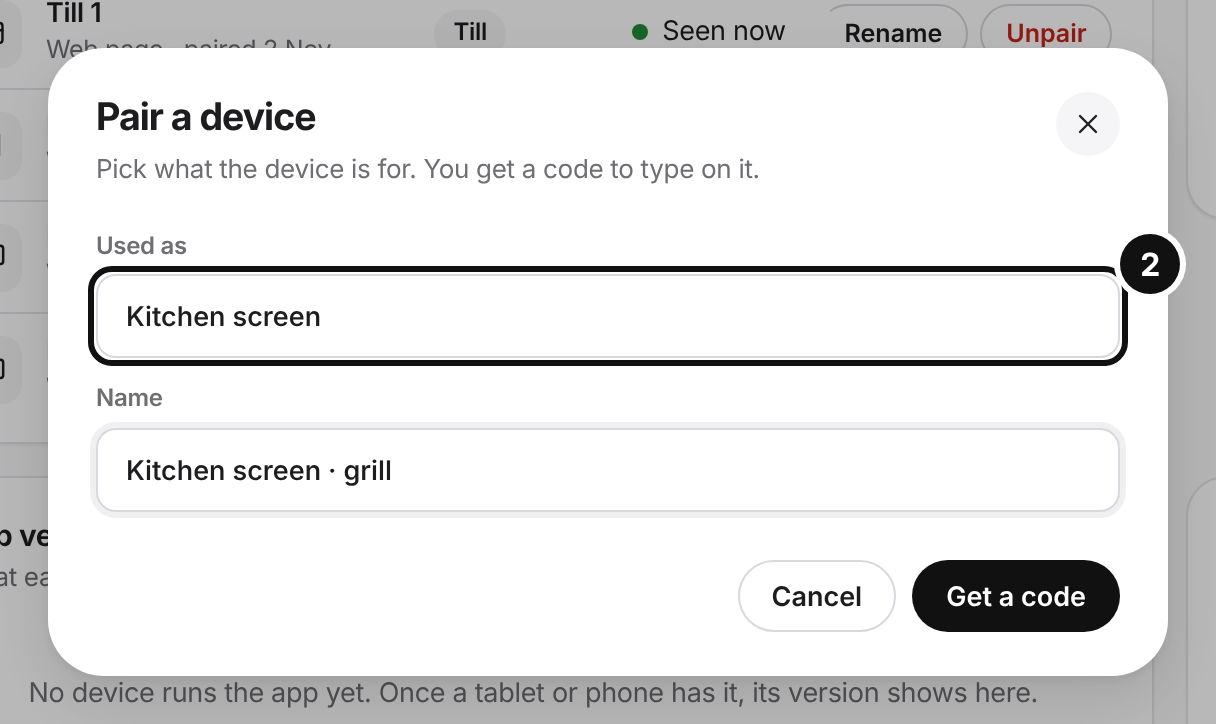
Under Used as, pick what the screen is for. Give it a name you will recognise, like Kitchen screen · grill.
-
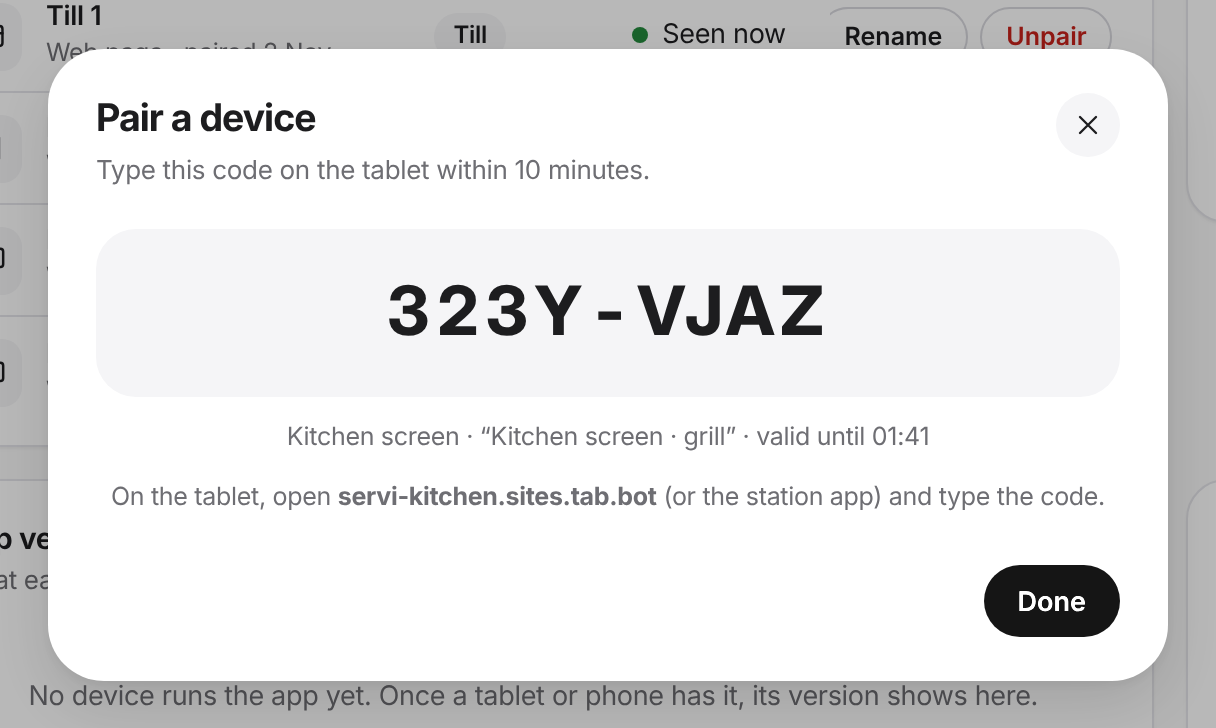
Tap Get a code. The code works for 10 minutes.
-
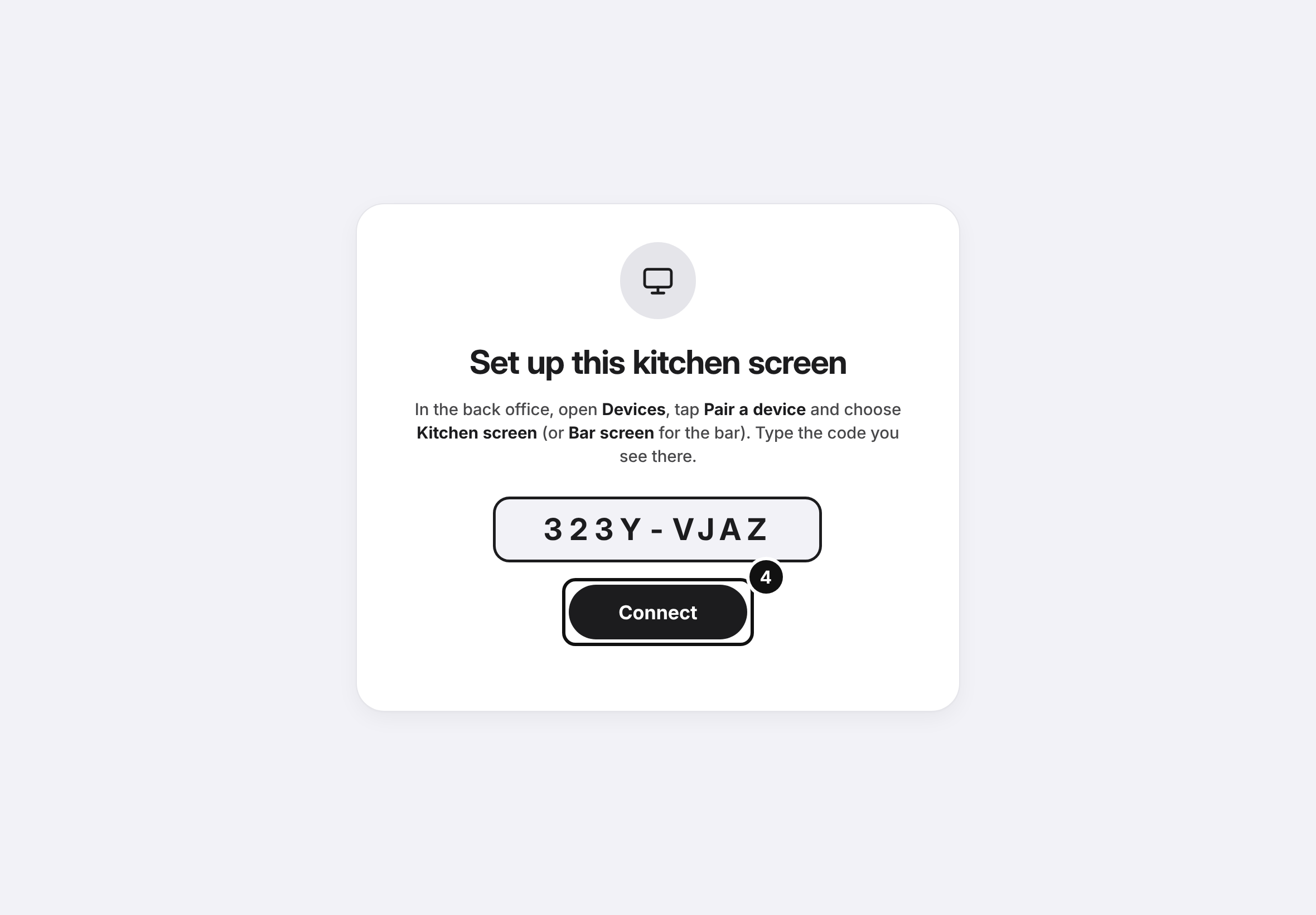
On the new screen, type the code and tap Connect.
-
That’s it. The screen shows its orders right away and updates by itself from now on.
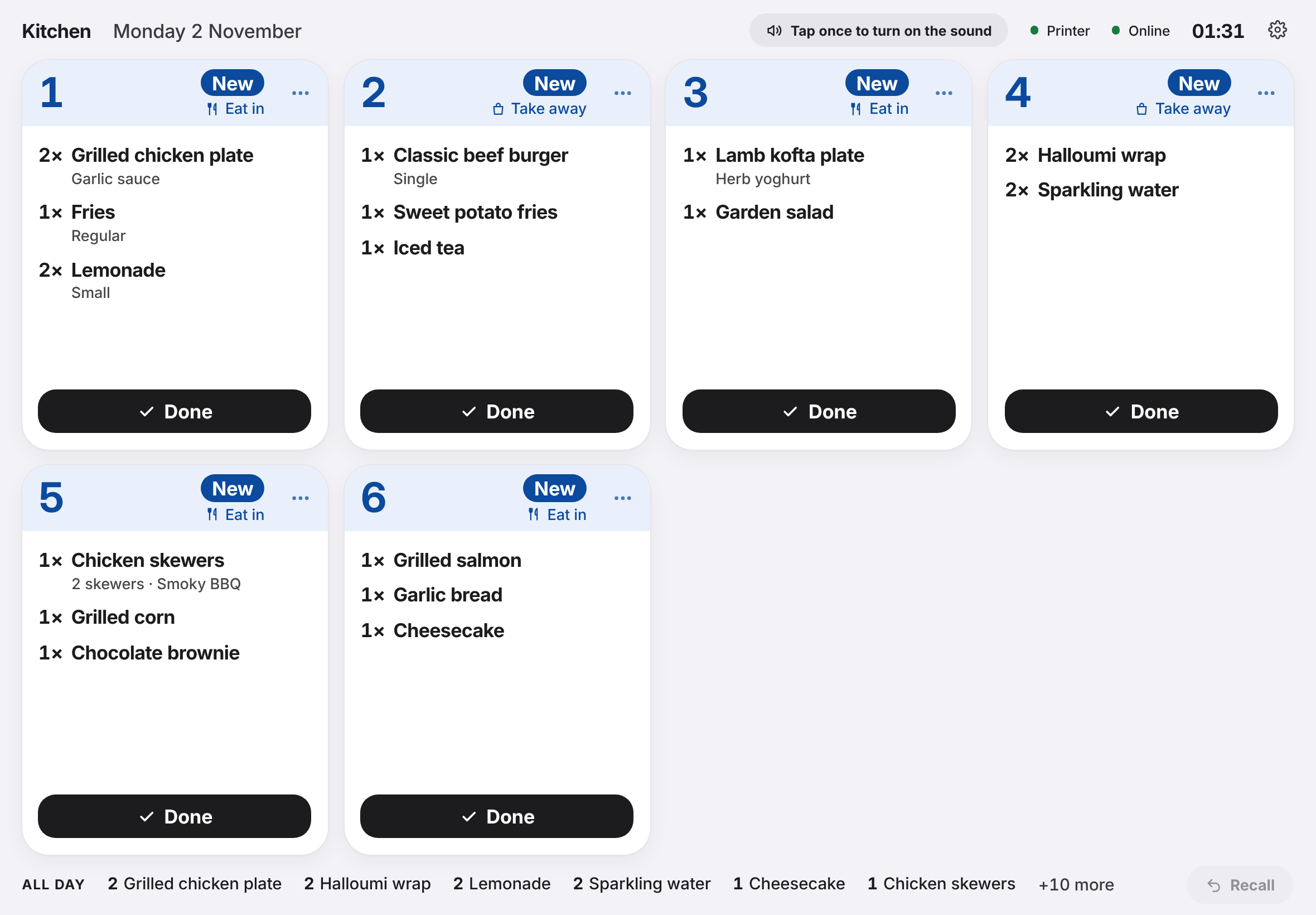
Pair with a QR instead of typing
For a kiosk or a kitchen screen, the window with the code also shows a QR. Scan it with the tablet’s camera: it opens the screen and pairs it, no typing. It is the same code, so it works for the same 10 minutes.
What you can pair
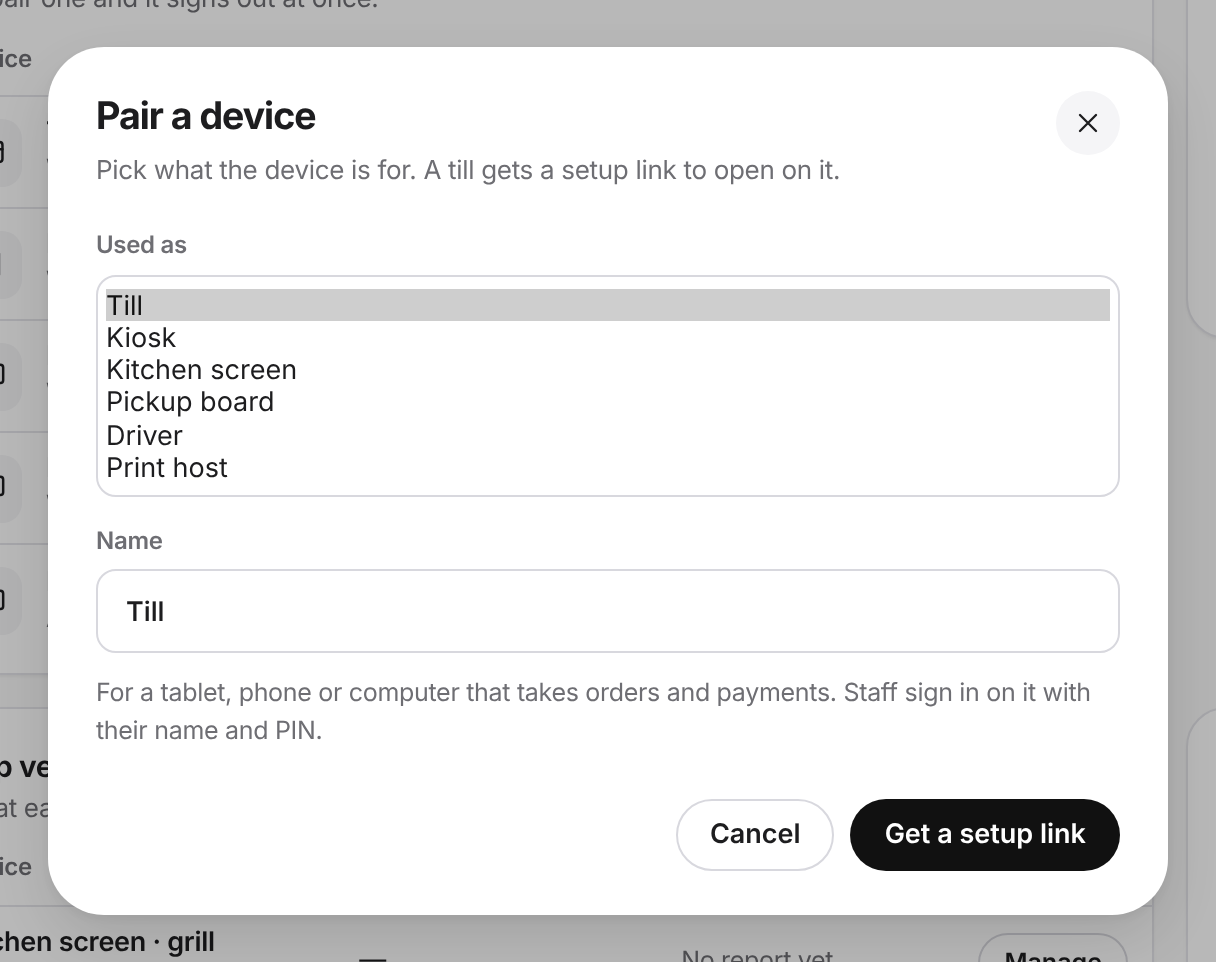
| Used as | What it does | How it connects |
|---|---|---|
| Till | Staff take orders and payments. | A setup link. How |
| Kiosk | Customers order and pay by themselves. | A code, typed on servi-kiosk.sites.tab.bot. How |
| Kitchen screen | Shows the orders the kitchen has to make. | A code |
| Pickup board | The big screen that shows order numbers when they’re ready. | A code |
| Driver | A delivery driver’s phone with the deliveries on it. | A code. How |
| Print host | The tablet that sends tickets to your printers. | A code |
Set up a till
A till can be a tablet, a phone or a computer. It connects with a setup link instead of a code.
-
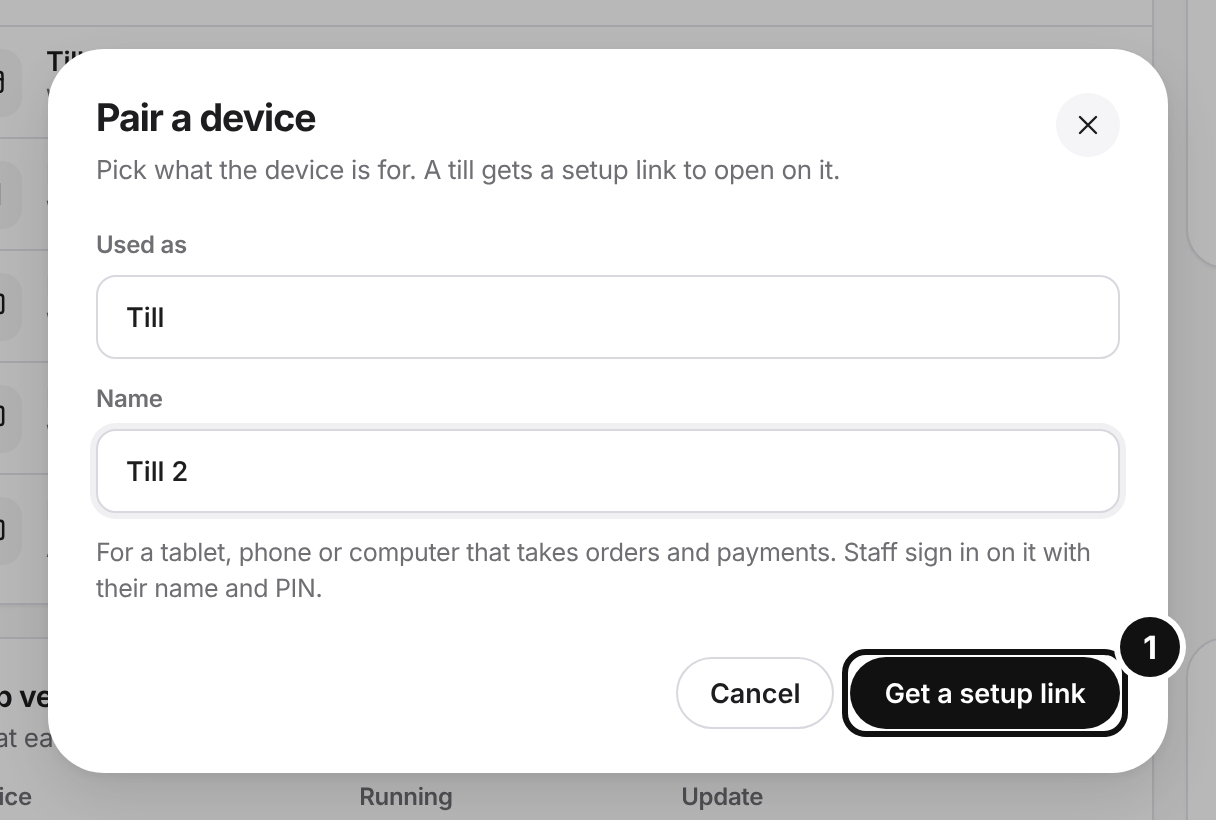
In Devices, tap Pair a device. Under Used as, pick Till. Give it a name, like Till 2. Tap Get a setup link.
-
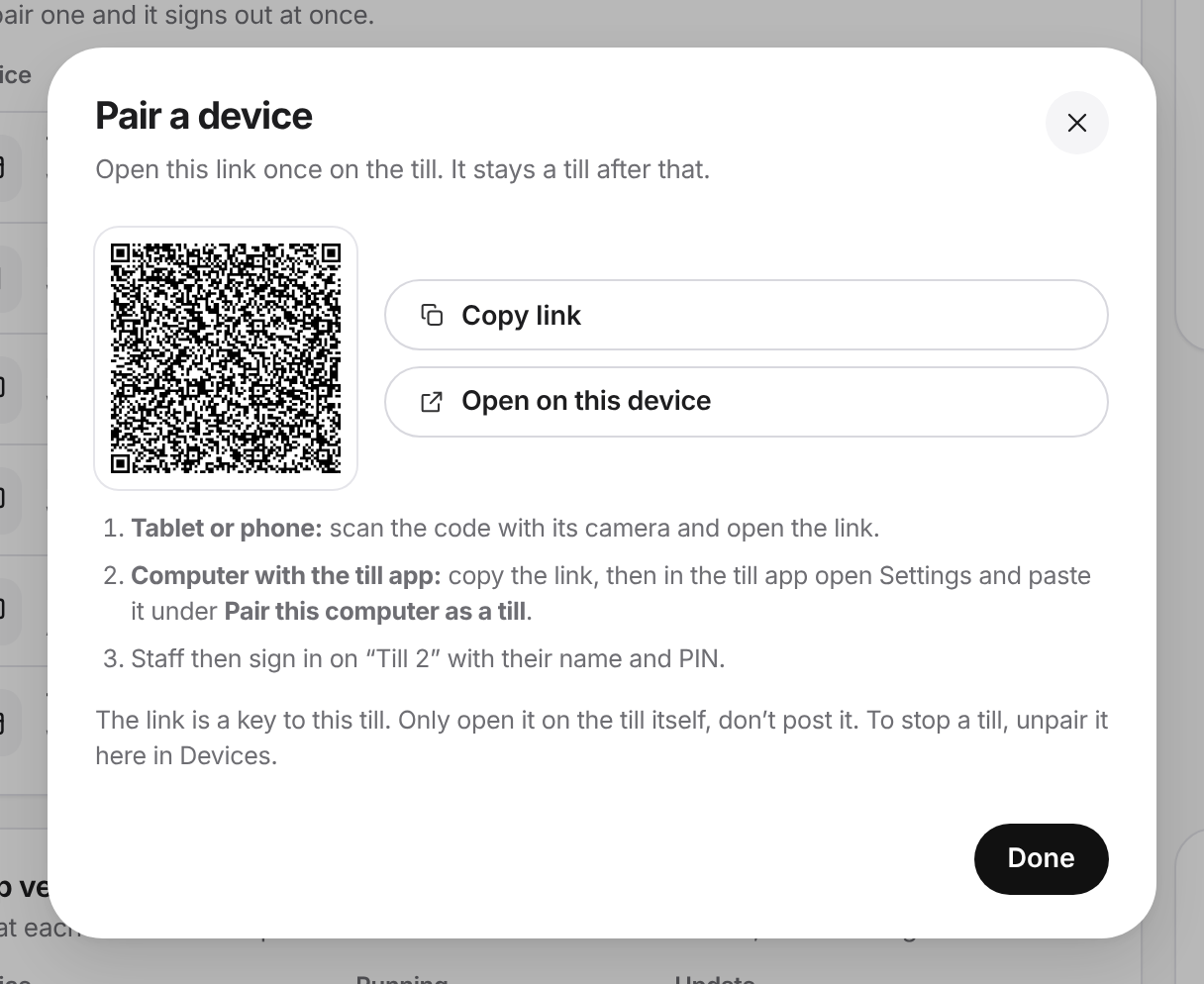
You get the till’s setup link. Open it once on the till:
- Tablet or phone: scan the QR code with its camera.
- Computer with the till app: tap Copy link. In the till app, open Settings and paste it under Pair this computer as a till.
- This computer is the till: tap Open on this device.
-
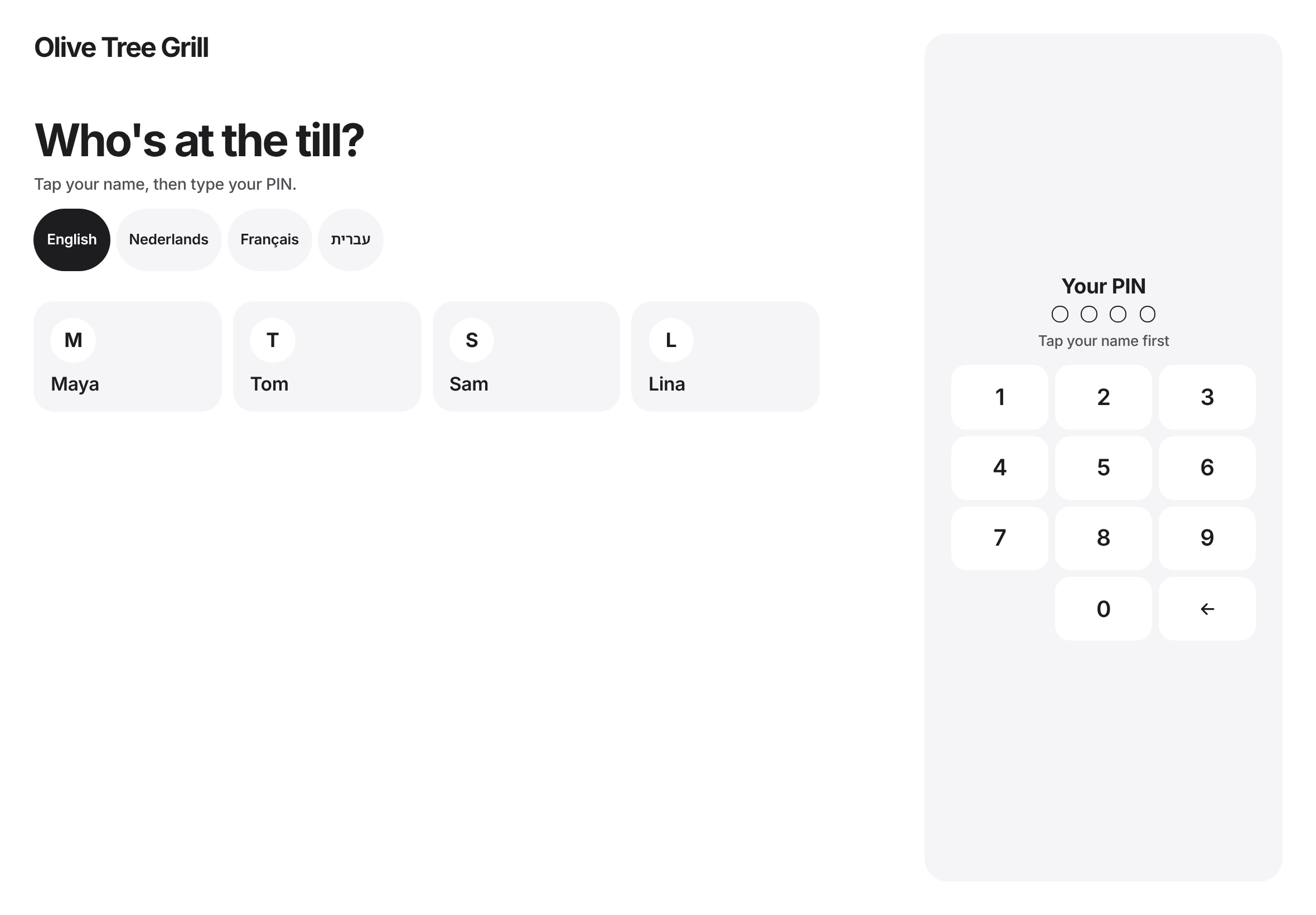
The till opens and asks Who’s at the till? Staff tap their name and type their PIN. The till remembers the link from now on.
Set up a driver’s phone
-
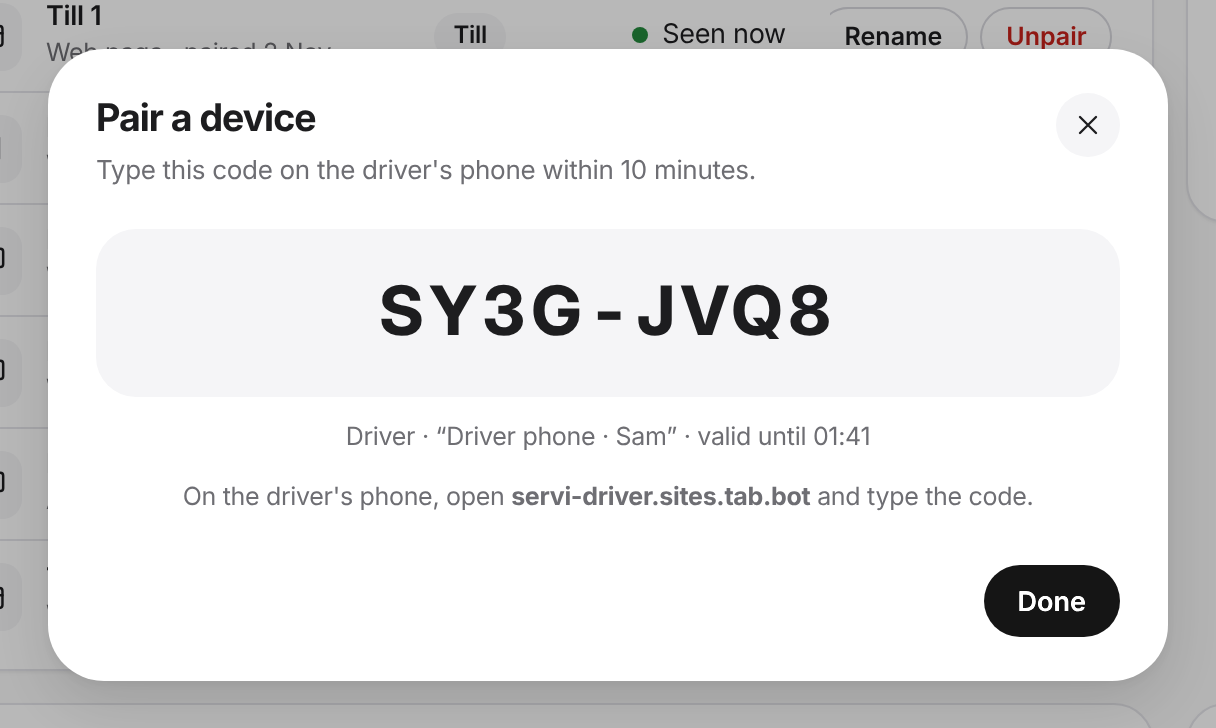
In Devices, tap Pair a device. Pick Driver, give the phone a name and tap Get a code.
-
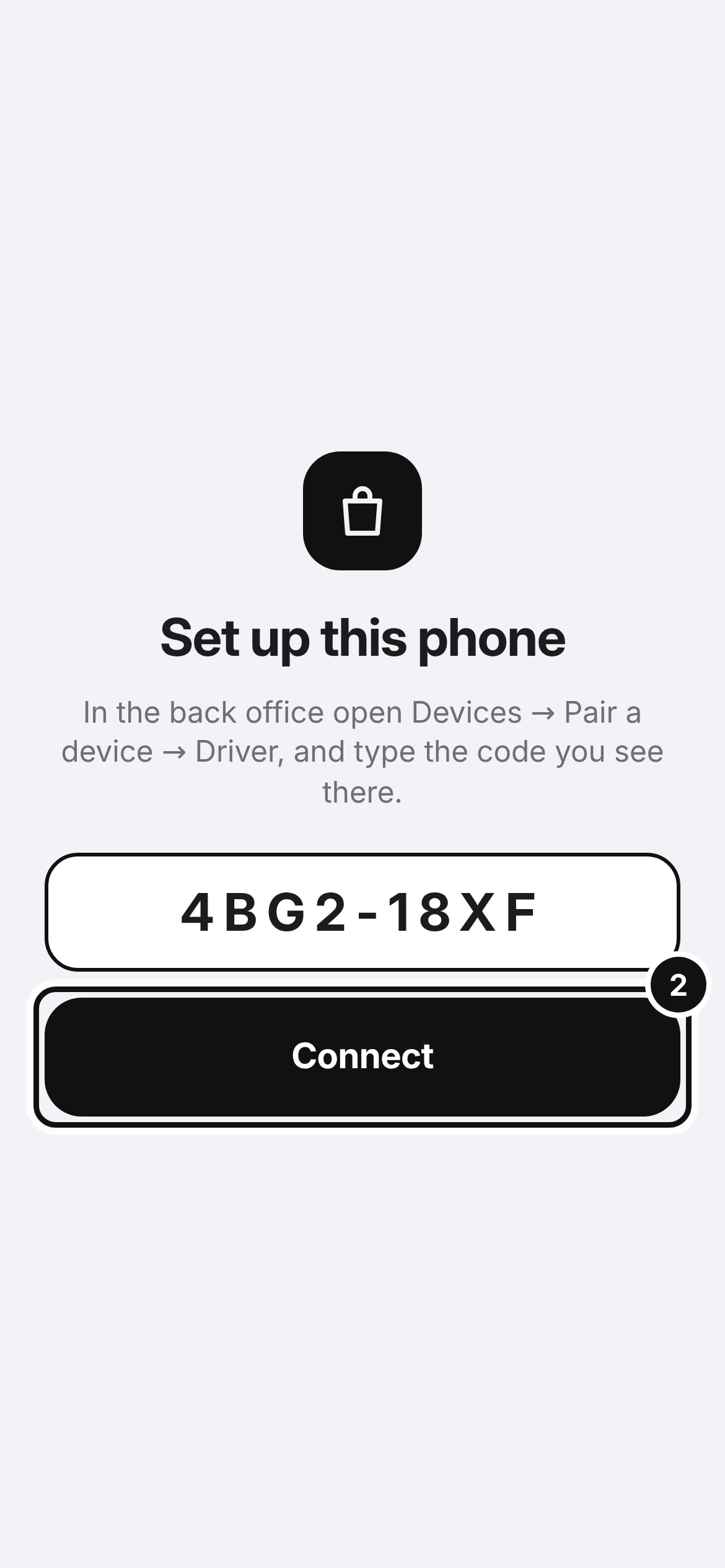
On the driver’s phone, open the driver app (its address is shown under the code). Type the code and tap Connect.
-
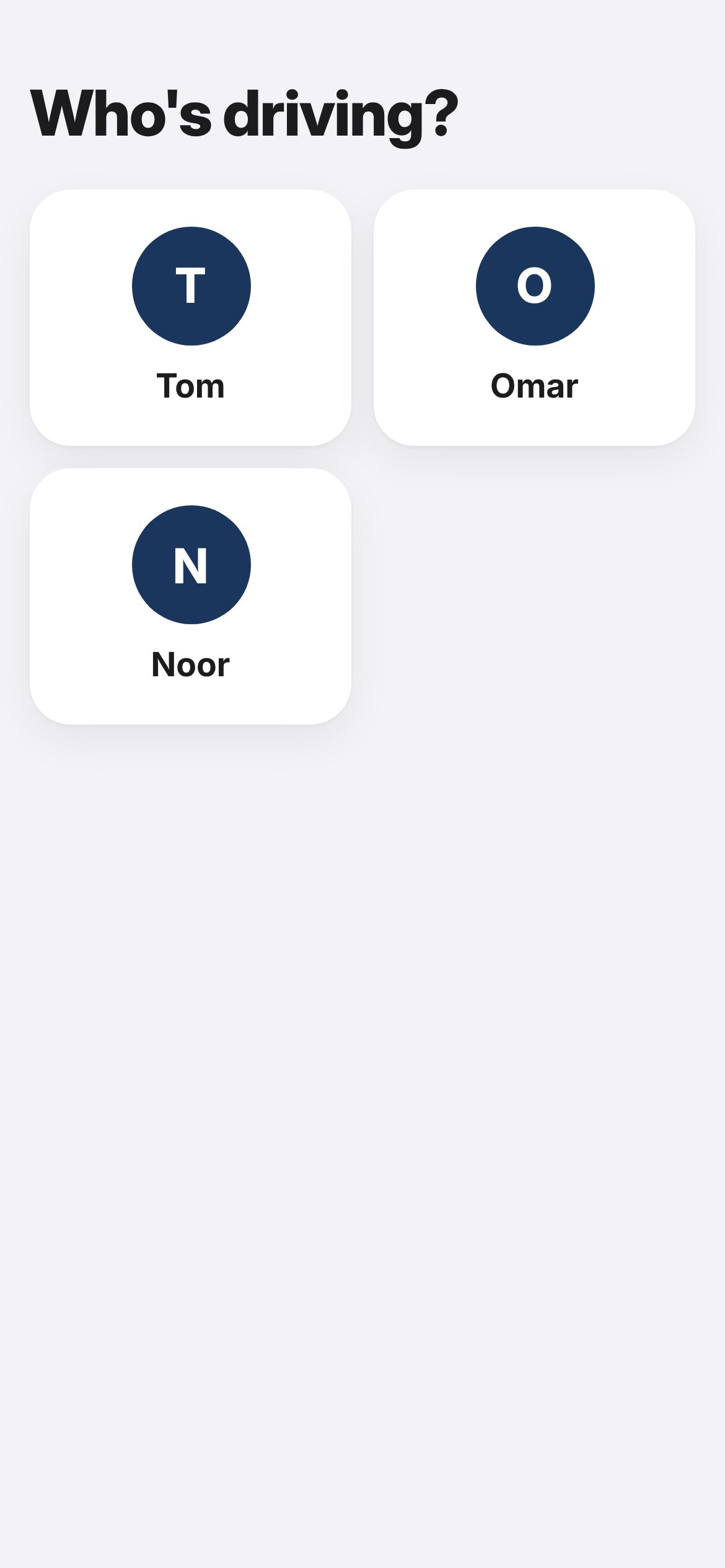
Done. The app asks Who’s driving? Each driver signs in with their PIN.
Rename or remove a device
In Devices, find it in Paired devices:
- Rename gives it a new name.
- Unpair signs it out at once. To use it again, it needs a new code.