Shop mode (retail)
Electronic shelf labels
-
Go to Settings → Shelf labels and turn it on. It’s off until you turn it on. Keep Test / simulator until you have chosen a brand.
-
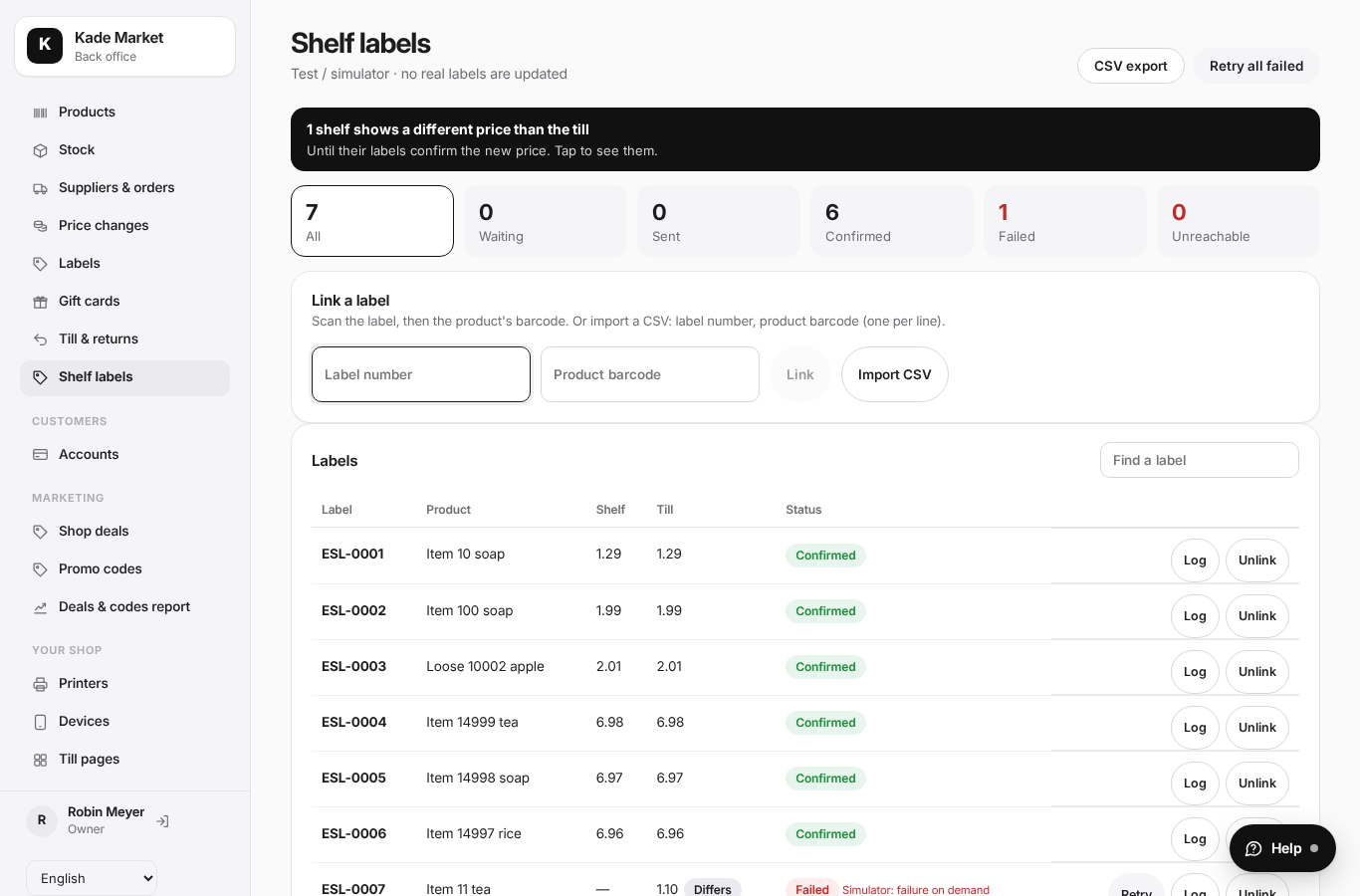
Go to Shop → Shelf labels. Under Link a label, scan the label, then the product’s barcode. Many at once: Import CSV with two columns, label number and product barcode.
-
Change a price, a shop deal, a name or a shelf place as usual. Within a minute the labels on those products are updated. Each label shows Waiting, Sent, Confirmed, Failed or Unreachable.
-
A label that can’t be updated is tried again by itself (after 30 s, 1, 2, 4 minutes…). Tap Retry on a label, or Retry all failed. The newest price is always the one sent.
-
When a shelf shows a different price than the till, a black bar says how many. Tap it to see them. Log shows every link, change, send, confirmation and failure.