Delivery
Use the delivery board
Open Delivery in the menu on the left. Tap a filter to see what needs you, and tap Assign driver on an order that has none.
-
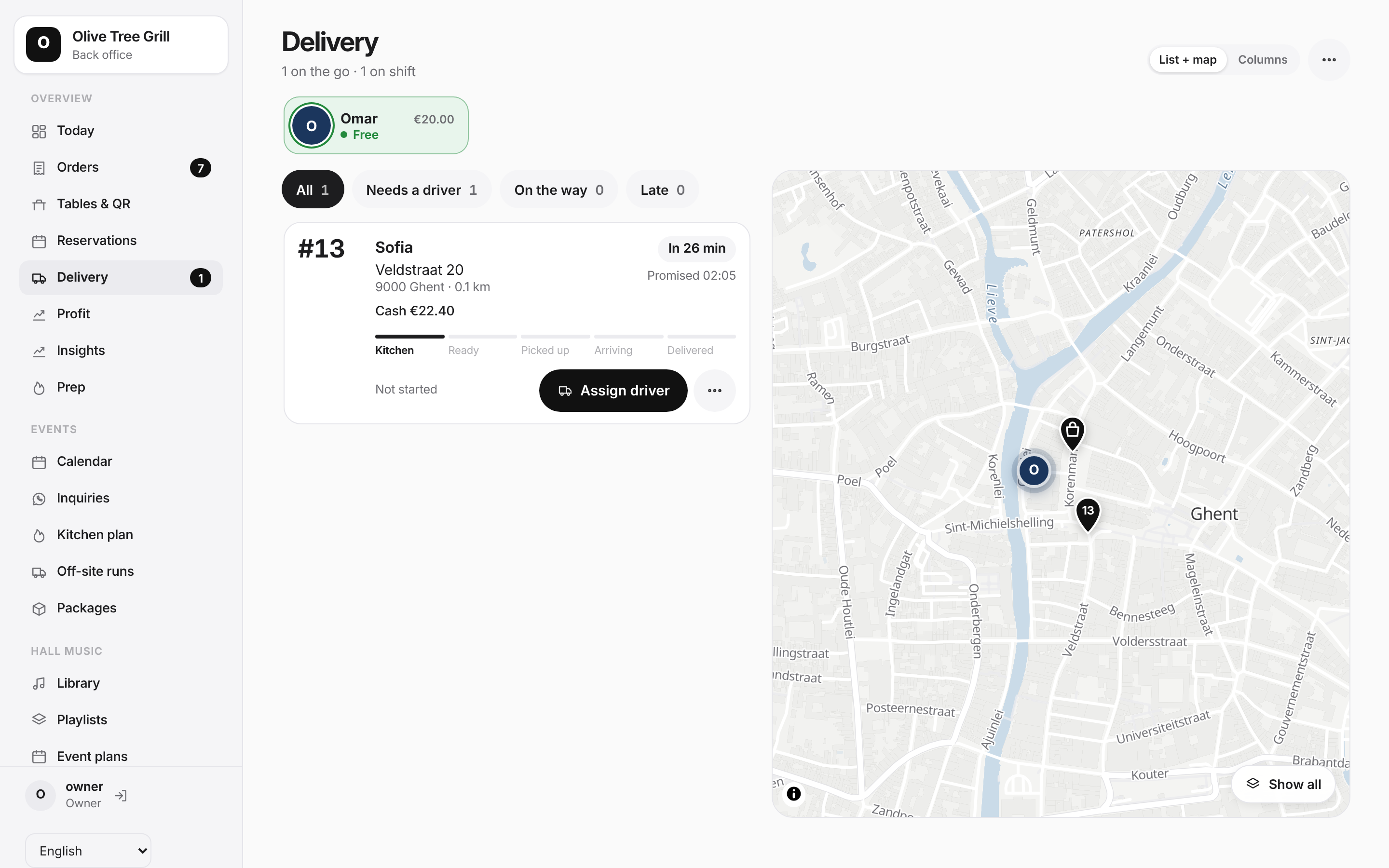
Open Delivery in the menu on the left. At the top: drivers on shift and what each one carries.
-
Tap All, Needs a driver, On the way or Late to filter.
-
An order with no driver shows Assign driver. Tap it and pick a driver.
-
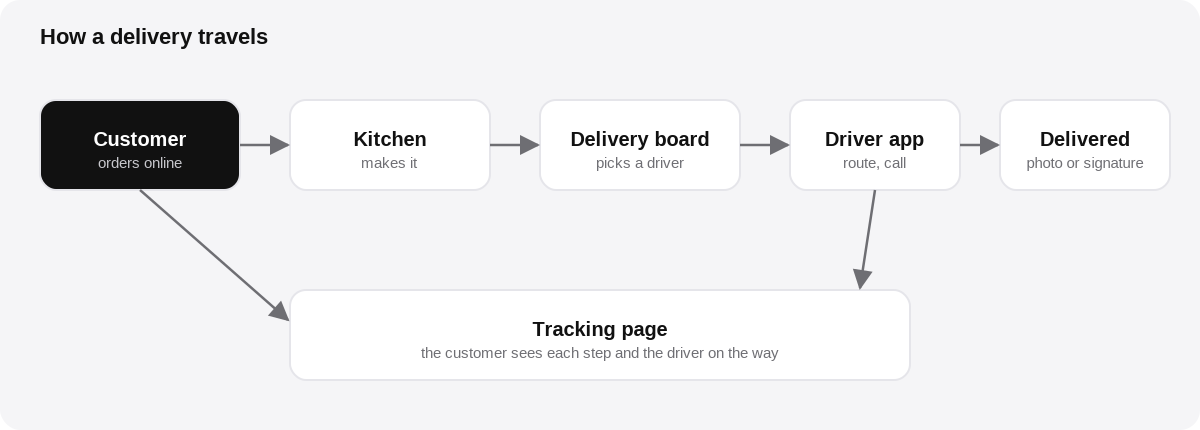
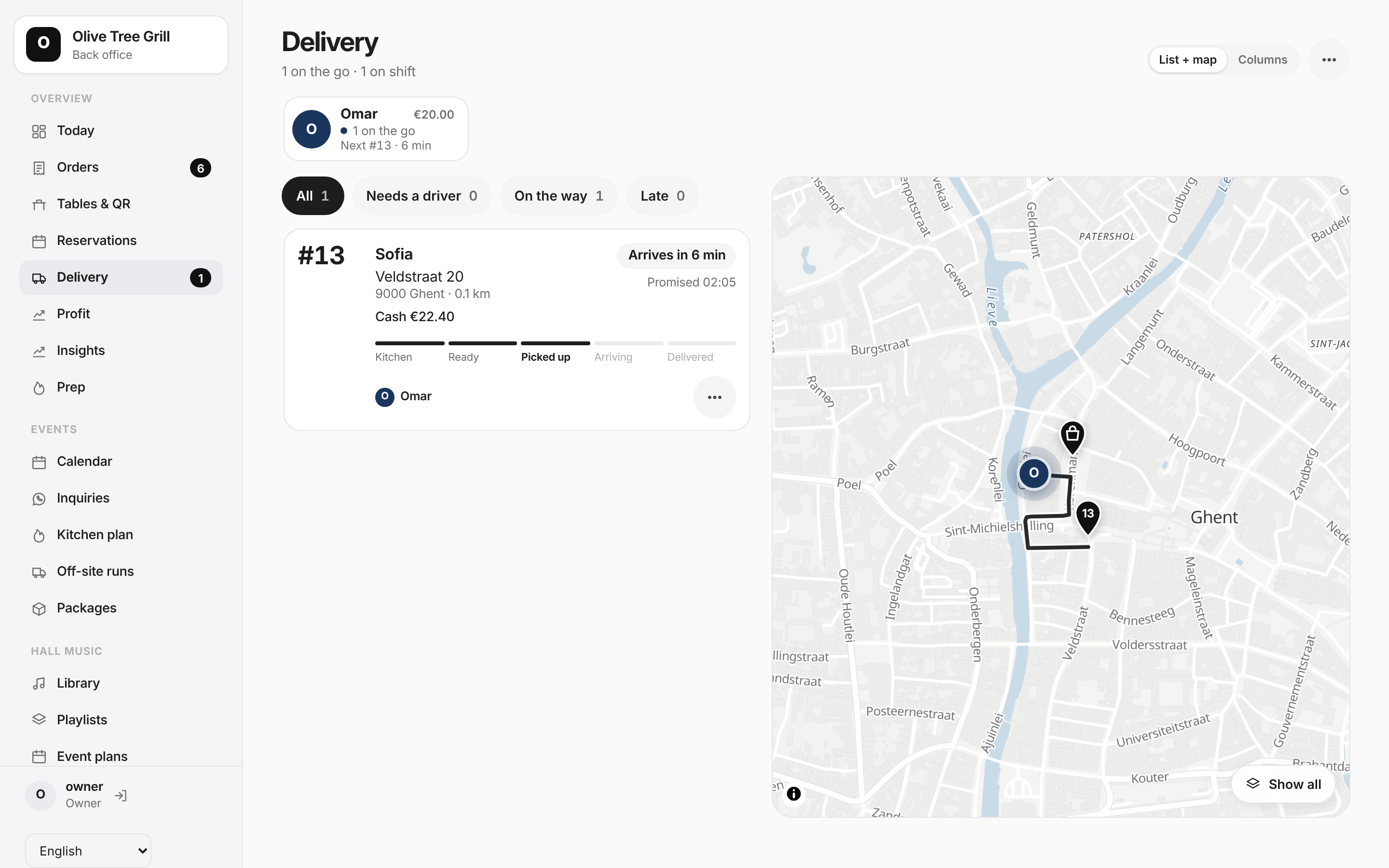
Each order moves along: Kitchen, Ready, Picked up, Arriving, Delivered.
Views
Tap List + map or Columns at the top. Hide map gives the list more room. Done today shows what was delivered.
How a delivery travels